








1928
The sound of a warm resistor
At Bell Labs, John B. Johnson measured tiny fluctuations in voltage across a resistor, even with no voltage applied. Warming the resistor made the fluctuations stronger. A quiet circuit had a hiss of its own.
Choose your first sound, set a timer or build a routine. Each section follows the controls you’ll find in OrangeNoise.
Sound
All sound is generated live on your device, without looping recordings. Listening works offline.
In Sounds, tap the sound name to choose OrangeNoise, Brown, Pink, White, Green or Blue. For a first listen, compare the soft rush of Pink with the lower rumble of Brown. Adjust Volume and Tone as it plays. The signature OrangeNoise sound also has Rain and Softness controls.
With Pro, Blend mixes five noise colors. Try the free 60-second preview to compare Original and My blend before deciding. Audio Motion changes a sound over time with adjustable speed and depth; it is separate from visual movement.
Pro gives you six named sound presets. The Presets icon gains a small + when your current sound can be saved. Opening it still brings you to your library; tap a saved sound to play, or choose Save current sound to select a slot.
Empty slots are highlighted while saving. If all six are used, choose one to replace and confirm before overwriting it. Drag presets into your preferred order. Changing Volume keeps a matching preset name and does not switch your saved sound.
Share sound and Import sound are in each preset slot’s ••• menu. Complete routines can be shared too, with their sounds included. Importing does not start playback.
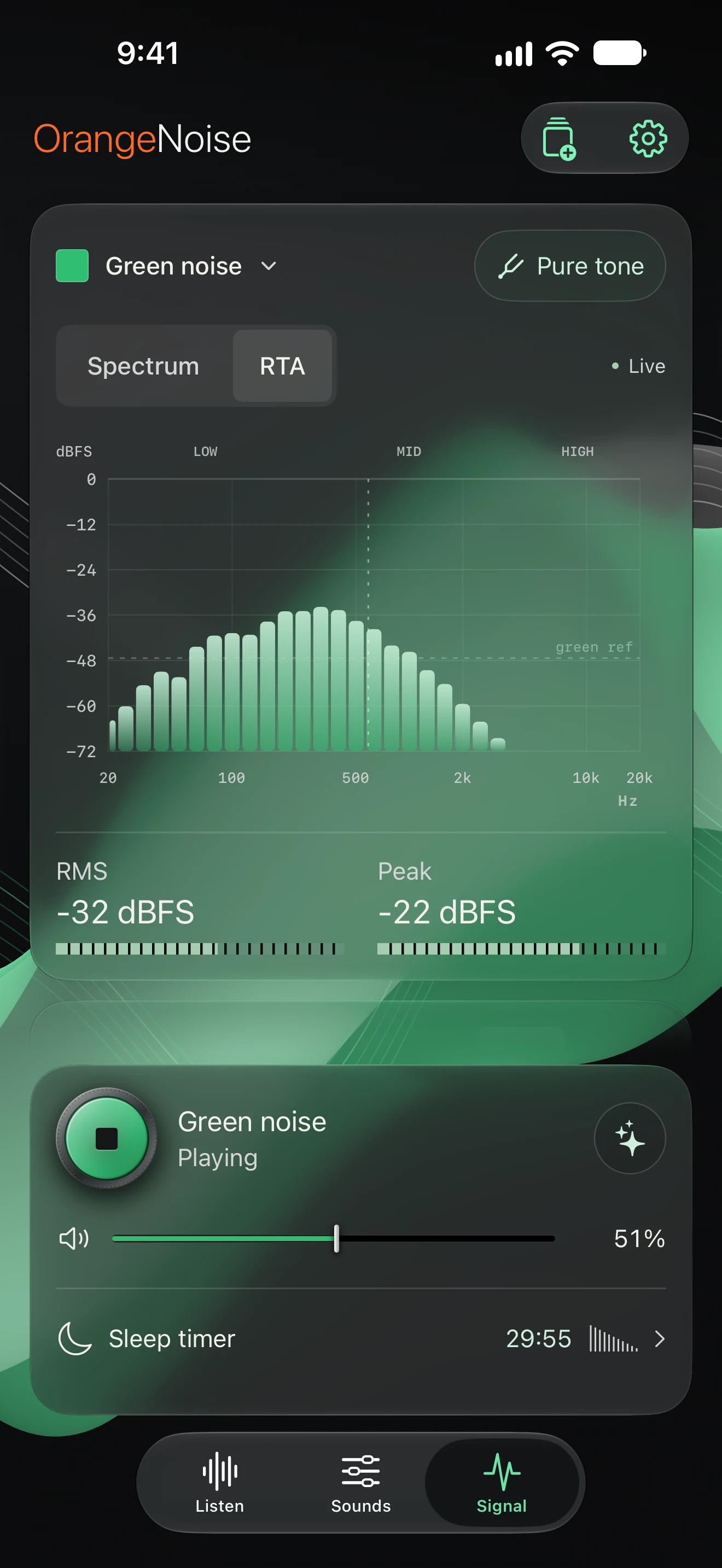
Signal measures the sound OrangeNoise generates on your device. Spectrum shows how the output is distributed across frequencies. RTA groups that output into one-third-octave bands. RMS shows the average signal level and Peak shows its highest level. The meters use dBFS, a digital output scale. Your microphone is never used.
Select or preview a tone to see Source. It draws one marker per pitch you enter and shows the optional supporting band. Choose Spectrum or RTA to see what is actually playing, including any harmonics from the waveform.
Workspace
Listen, Sounds and Signal share a living backdrop on portrait iPhone. Floating glass keeps your controls readable, while the player stays within reach.
Swipe horizontally between the three main views, or use their navigation buttons. Dials and sliders still adjust their values; vertical swipes scroll longer controls. Your sound keeps playing as you move around.
The sound capsule opens your color choices. Matching dials make sound shaping and blending consistent, and scrolling controls soften as they pass beneath the player. Presets and Settings open as separate sheets with a handle: swipe down or choose Done to return.
The listening workspace is included free. Pro features, including Clouds, Blend, saved presets, routines and Signal, still require Pro.
Visuals
Your sound and your view can feel right together. Appearance choices stay on your device, separate from saved sound presets.
Open Settings → Listen visuals, then open a category to choose its type and controls. The visual chooser in Listen lets you switch types without leaving the view.
Choose Subtle, Balanced or Expressive sound response, then set Travel speed from Almost still to Fast. Silk, Atmospheres and Clouds also have Morph speed. Each category remembers its choices. Existing saved preferences are preserved when you update.
Pro Clouds adds Soft–Clear clarity. Wind clouds drift and reshape as they move; Expressive increases deformation. Optional Pro Aurora glow adds light over any visual, including free Silk styles.
Visuals respond to audio generated inside the app, settle when playback stops and respect Reduce Motion. Clouds and Aurora help.
The free appearance follows the noise color. Pro App color lets you keep one of 15 single colors, or choose Rainbow, Twilight, Ocean or Sunset, regardless of the sound.
The palette follows your visuals, playback controls and clock. The sound capsule and Blend dials retain their sound colors so they remain identifiable. App color changes appearance, not audio.
Your device
The adaptive layouts are included free. These examples also show Pro features, including Clouds, App color and the tone generator.
Listen, Sounds and Signal share a full visual backdrop in portrait, with glass controls and a persistent player. Swipe between those screens or use the navigation buttons. Sounds adds a compact color chooser and matching dials; Pro Signal shows the sound while the visual continues behind it.
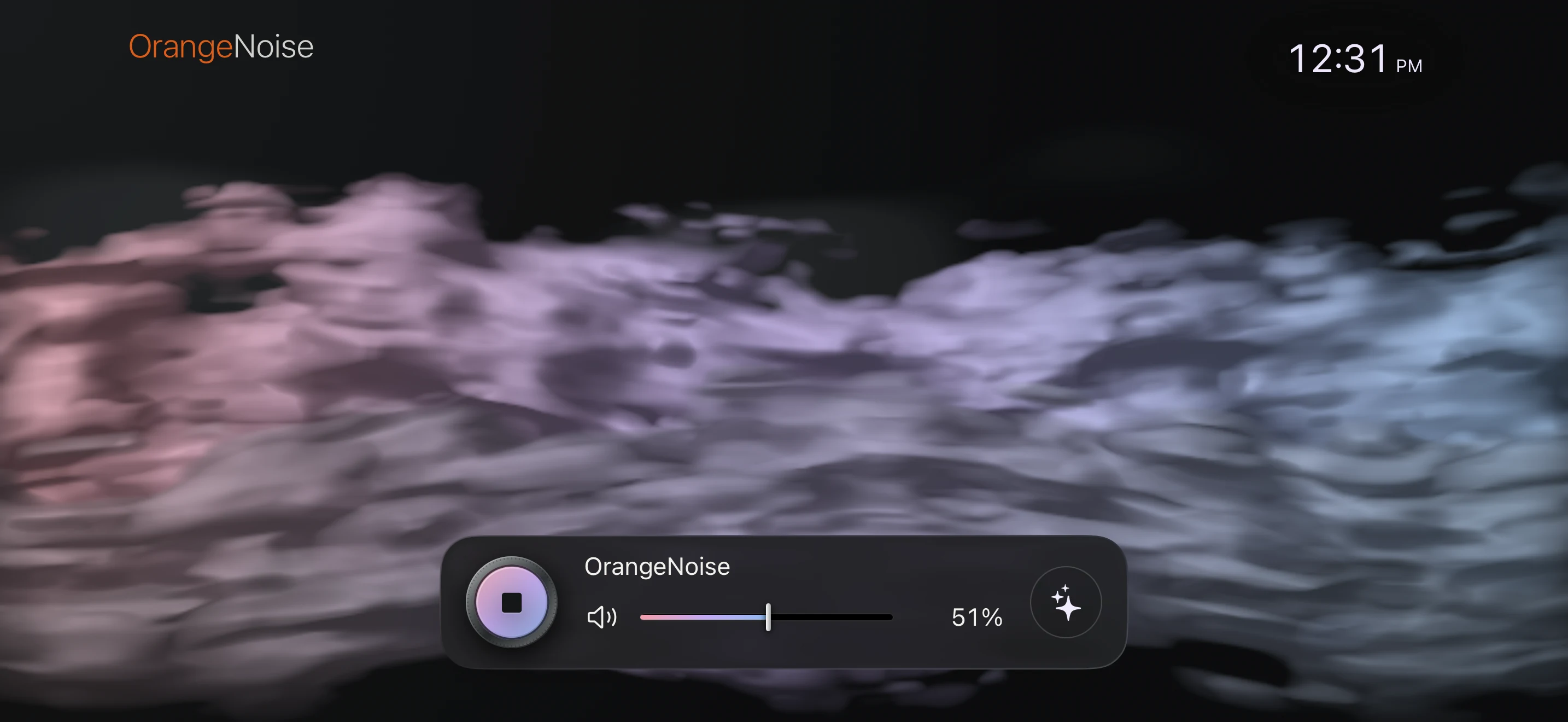
Turn Listen sideways for a full visual, top-right clock, Play/Stop, Volume and visual chooser. Sounds, Signal and editors remain portrait. Presets and Settings have a grab handle and slide down when dismissed.
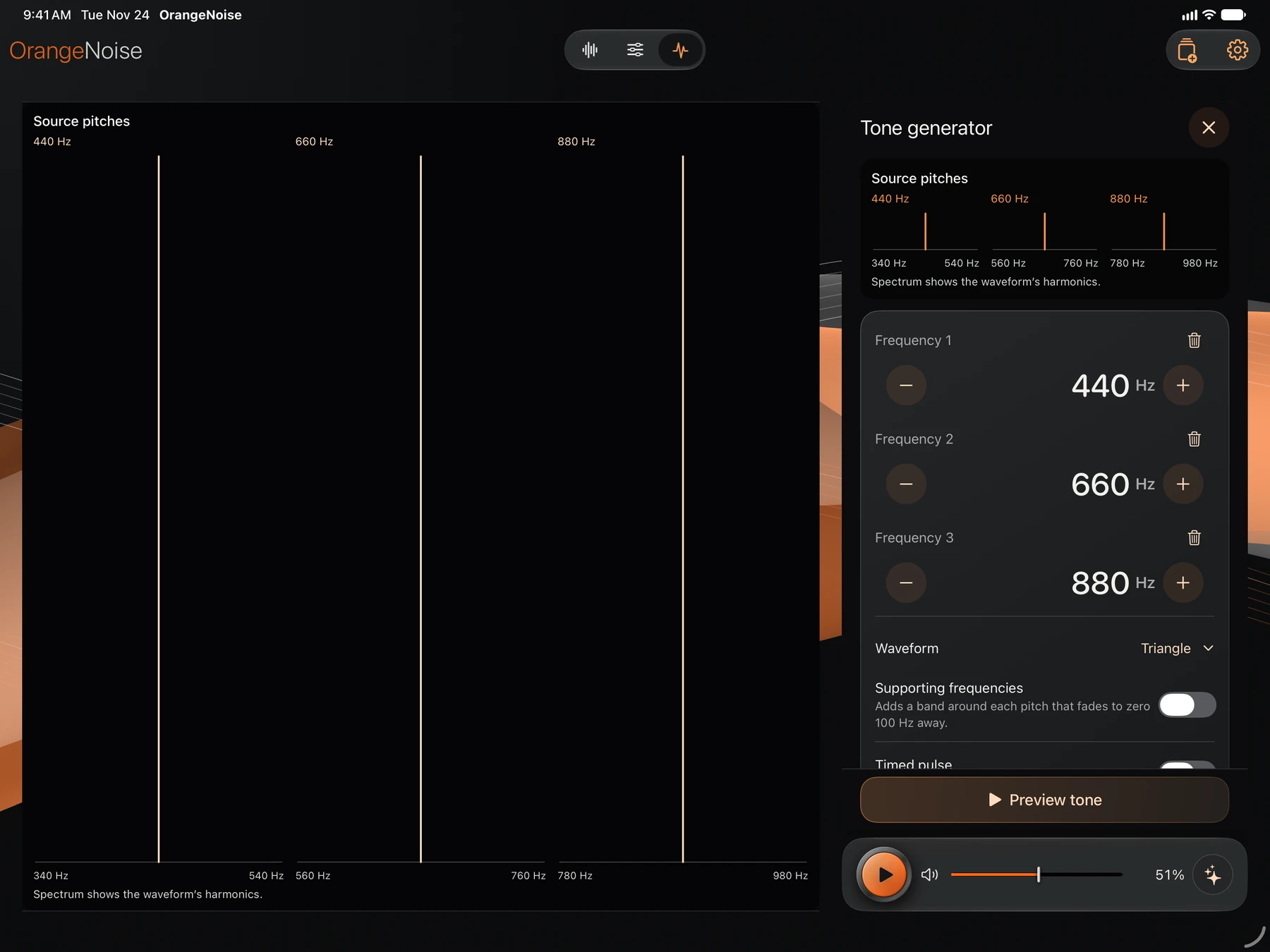
The app works in portrait or landscape. The floating workspace moves beside or below the visual as your window changes. In Sounds, Blend puts all five color controls together. Open Pure tone in Signal to adjust pitches in that workspace while the graph stays in view. Native glass navigation is available on iPadOS 26 or later.
A continuous visual fills the display. Controls move from the bottom when closed to the right when open, or the lower usable surface in tabletop. Editors remain in the floating workspace; Signal uses the space beside it. Night Display works in every Duo Listen posture.
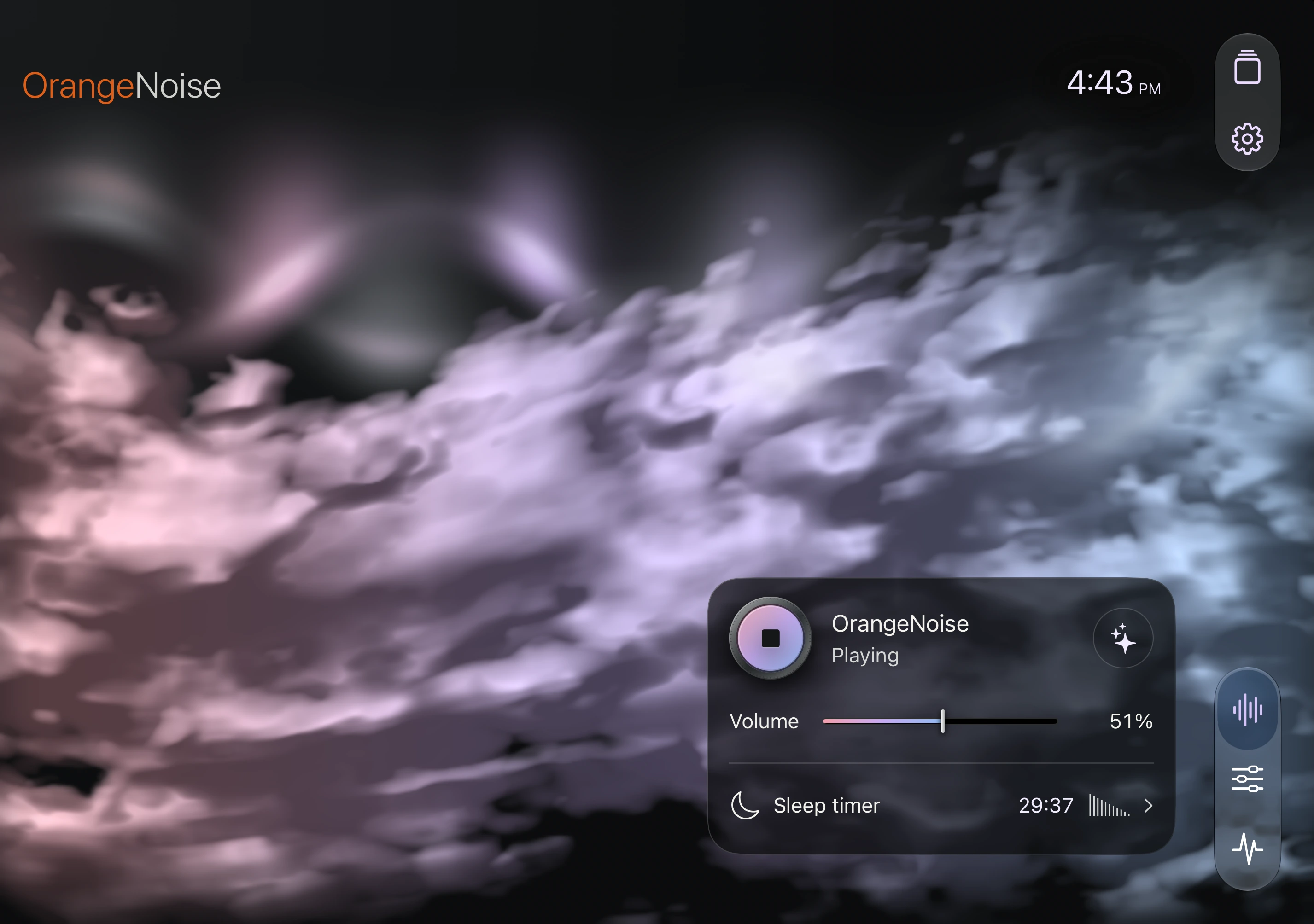
Use the same app and Apple Account on your devices. Pro sounds and routines can be transferred as OrangeNoise files; this is not automatic syncing.
The quiet hours
Night Display controls the view. Your sleep timer or routine controls the sound. Their durations are separate.
Night Display is included free. Choose Use Auto-Lock, 15 or 30 minutes, one or two hours, or All night. It needs OrangeNoise open in landscape Listen—or any Duo Listen posture—on an awake, unlocked device.
Choose Normal color or Night red, an inactivity delay and separate brightened and dimmed levels. After inactivity, it dims in any room lighting. The first tap gently brightens without operating playback controls; Night red stays red. Optional movement brightening responds to physical device movement. Dimmed visuals use a reduced frame rate.
The app does not sense room light, change system brightness, silence other apps or wake a locked screen. Use your device’s Focus options for quiet notifications.
The top-right clock has Small, Medium and Large sizes and follows your device’s local time and 12/24-hour preference. It appears in landscape Listen on iPhone, and in Listen on iPad and Duo.
Pro includes two saved routines. Add time windows and place your saved sounds into them. Edit the sound, time and fades inside each window, including the starting fade. Your original sound, later changes and ending share one agenda. Saving changes does not start audio.
Start now or schedule a time. End after the last window, at a chosen time, or keep the final sound going until you stop. During a crossfade, the app shows the transition and gently changes the sound color; a chosen Pro App color keeps your palette.
For an in-app scheduled start, keep OrangeNoise in the foreground and unlocked while it waits. Schedule it again each night. Leaving the app or locking the device before the start cancels the waiting run. Play stays idle until sound begins; changing volume does not start it. Tapping Play early starts the current sound and cancels the schedule.
The starting fade reaches the volume selected when the routine begins. Once audio starts, the app releases its keep-awake hold so normal Auto-Lock can take over. Audio can continue while locked. Apple StandBy may then appear when its own requirements are met; OrangeNoise cannot force it open.
To start when already locked, create a Time of Day automation in Shortcuts with the Pro Start OrangeNoise Routine action. You create and enable that automation yourself.
Everyday access
The free Start or Stop OrangeNoise action toggles your current sound. Configure the sound in the app first.
On iOS or iPadOS 18 or later, add it to Control Center; supported iPhones also offer it as a Lock Screen control. In Shortcuts, add the action to your own shortcut. Pro includes a separate Start OrangeNoise Routine action for a saved routine.
Set up Control Center and ShortcutsFree + Pro
Plenty to begin. More to make your own. Pro includes everything in Free, with one optional purchase and no subscription.
3Silk visualsYour quiet, in motion.
12Total visualsClouds, light, water & more.
| Feature | FreeIncluded with the app | ProOne purchase. Yours to keep. |
|---|---|---|
| Sound | ||
| Six sounds | All sixOrangeNoise, Brown, Pink, White, Green and Blue. | All sixThe same six sounds. |
| Sound controls | Shape your soundVolume and Tone; Rain and Softness for OrangeNoise. | Add audio MotionAll free controls, plus Motion for noise colors and blends. |
| Blending | 60-second previewAdjust five colors and compare your mix. | Keep your blendPlay your five-color mix and save it. |
| Signal | Not included | See your soundLive spectrum, one-third-octave analyzer and output meters. |
| Pure tone generator | Not included | IncludedLayer up to three pitches. Choose their waveform, pulse and stereo movement. |
| Your view | ||
| Visual styles | 3 Silk stylesIncluding their movement controls. | 12 stylesSilk, Light & flow, Atmospheres and Clouds. |
| Color | Follows soundThe view takes on your sound’s color. | Your own paletteFollow sound, 15 single colors or 4 blends: Rainbow, Twilight, Ocean and Sunset. |
| Clouds & Aurora | Not included | Clarity + glowSoft–Clear cloud clarity and Aurora glow over any visual. |
| Clock & device layouts | IncludedPortrait glass controls, swipe navigation, 3 clock sizes and adaptive device layouts. | IncludedThe same glass controls, navigation, clock and device layouts. |
| Night Display | IncludedNight red or Normal color, adjustable dimming and gentle tap or optional movement brightening. | IncludedThe same display controls. Audio duration is separate. |
| Your listening | ||
| Session length | Up to 2 hoursChoose your audio timer. | Up to 10 hoursOr Indefinite, until you stop. |
| Fades | Up to 30 seconds | Up to 5 minutes |
| Saved sounds | Not included | 6 named presetsDrag to reorder; your last setup is remembered. |
| Nightly routines | Not included | 2 saved routinesTime windows, fades and scheduled starts. Choose an ending or Until I stop. |
| Sharing | Not included | Share + importSaved sounds and complete routines across your devices. |
| Background playback | IncludedListen in the background or with the screen locked. | IncludedThe same playback, with longer sessions available. |
| Quick access | Playback toggleControl Center, supported iPhone Lock Screens and Shortcuts. | Routine action tooAll free playback access, plus Start OrangeNoise Routine in Shortcuts. |
Apple shows the current Pro price in the app. Use the Apple Account that owns Pro on your devices, and choose Restore purchases if needed. Purchase and restore help.
Your choice
Starting with version 3.0, optional analytics can help us improve OrangeNoise. Sharing is off until you choose it, and no Pro purchase is required.
Open Settings → Privacy & analytics → Share analytics to turn sharing on or off. Declining changes none of your features. The app does not record audio, and activity from before your choice is not uploaded.
Turning sharing off stops new collection, clears unsent events and requests deletion of shared data. Keep the app installed and reopen it online so that request can finish automatically.
Signal · OrangeNoise Pro
Start with a single pitch. Add a second or third to hear them together. The tone generator is included in the same one-time Pro purchase.
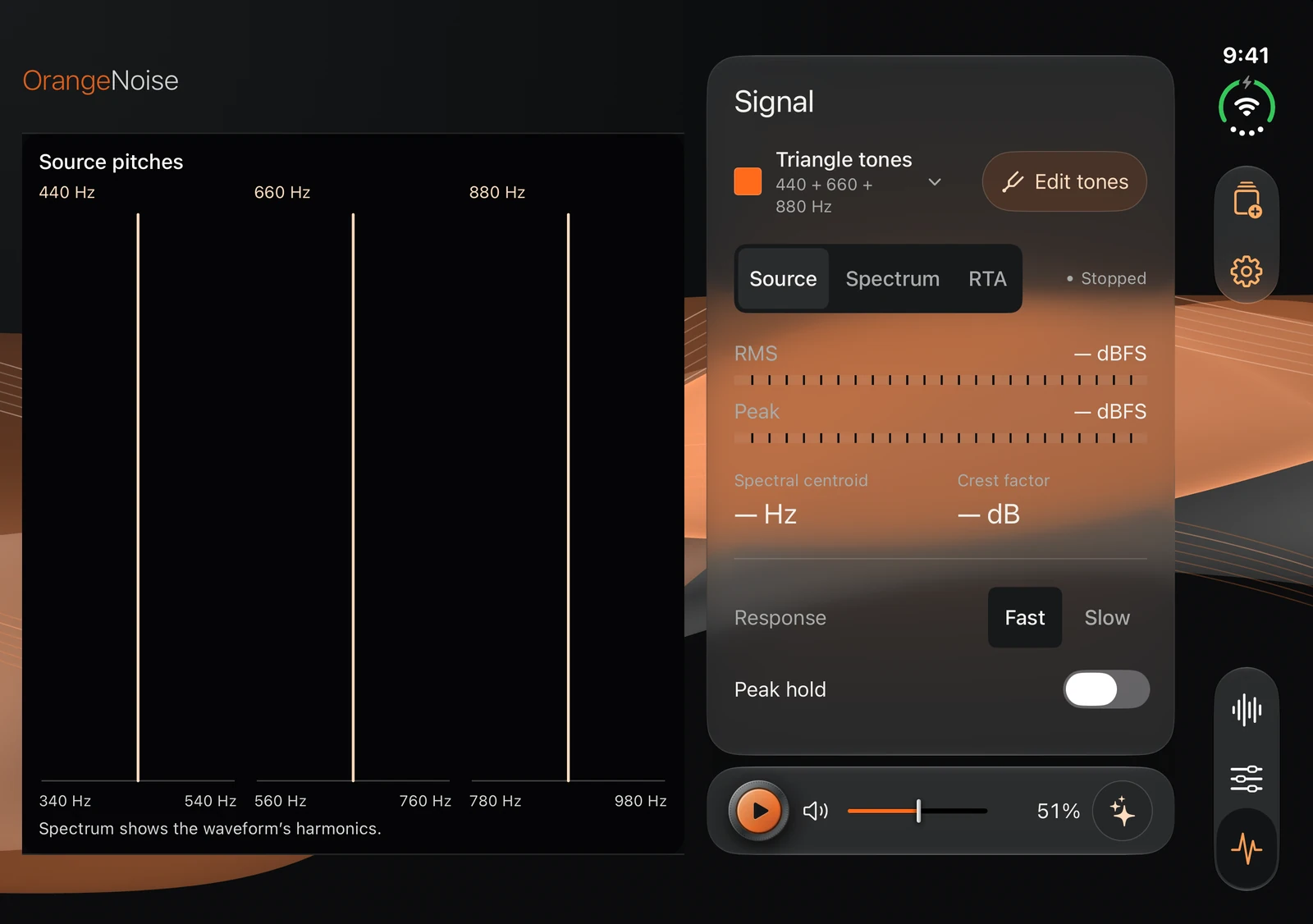
Waveform changes the character of all the pitches together. Sine gives you a clean tone. Triangle adds gentle harmonics, while sawtooth, square and Pulse wave (25%) have a brighter buzz.
Turn on Supporting frequencies for a soft band around each pitch. At 440 Hz the band is strongest near the center and fades to zero at 340 and 540 Hz. At the lowest and highest pitches, the band stays within the generator’s frequency range.
Timed pulse repeats the whole sound. Try a Pulse length of 125 ms and a Pause of 250 ms. Each field accepts a whole number from 1 to 60,000 milliseconds. Turn Timed pulse off for a continuous sound.
Turn on Stereo movement to hear the sound move left and right. Round trip sets the time for one complete back-and-forth movement, from 1 to 60 seconds. Try 8 seconds with stereo headphones. You can use either effect on its own or combine them. The sleep timer sets the length of the listening session.
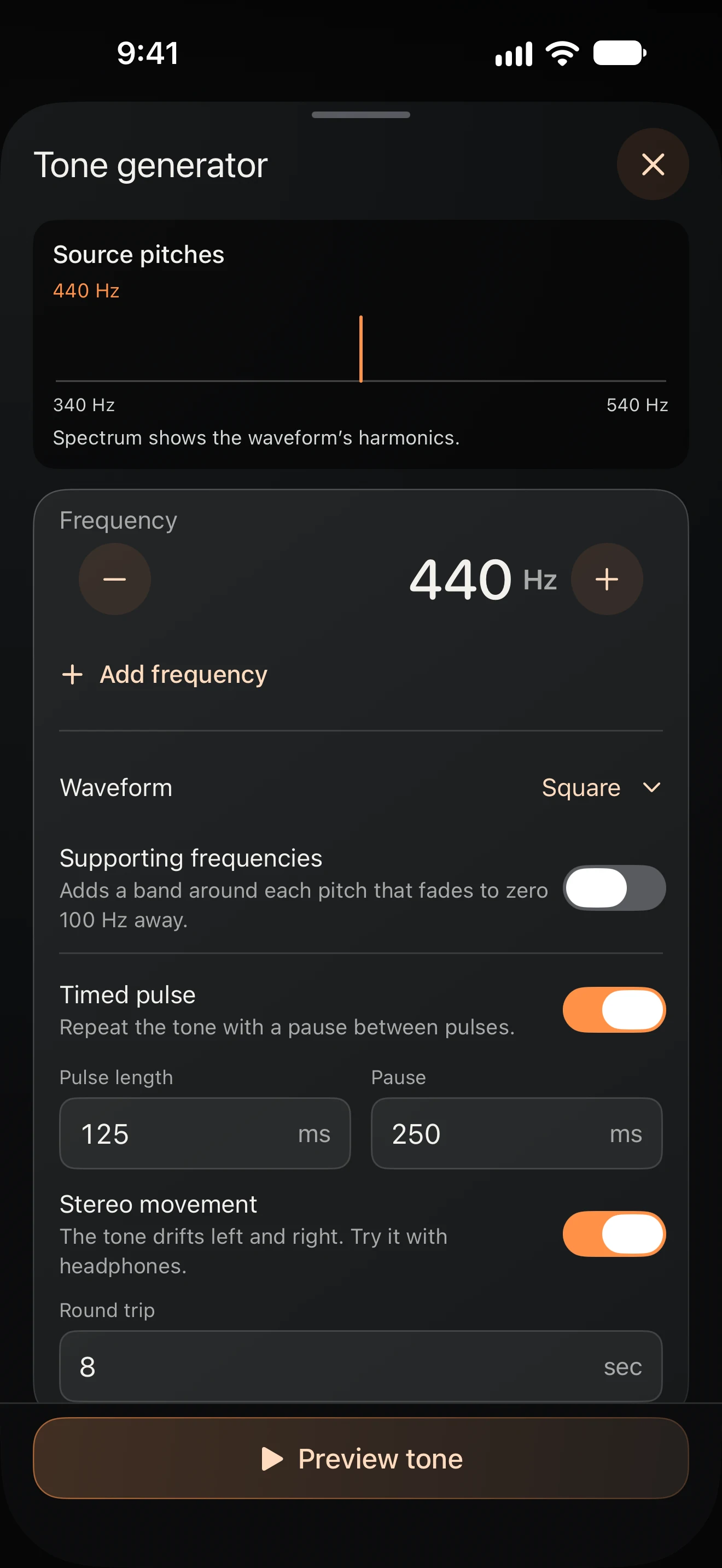
After closing the editor, open Presets beside Settings and choose Save current sound. Name an empty slot or select a preset to replace. The preset remembers the pitches, waveform, supporting band, pulse and stereo movement. Pick that preset in a routine’s sound window to use it again.
Search for an answer about playback, timers or purchases.




I could hear the surf from my bed in Seaside, Oregon. I listen for that same slow rise and fall at home. It takes me back to that warm room.
The sample couldn’t play. Open the sample.
From the maker of OrangeNoise
It started with a fan during a warm Seattle summer. When the weather turned cold, I pointed it away from the bed. I still wanted the sound.
For Seaside Nostalgia, I start with Brown, a deeper rumble than my old fan. I turn on Motion so the sound swells and settles again, like the surf outside that hotel room.
Inside the OrangeNoise app
A door latch. A voice through the wall. A steady sound underneath can make those small interruptions easier to let pass.
The last light goes out and suddenly you can hear every floorboard. Set a sound you like for half an hour. A 30-second fade eases the room back into quiet.
Explore the sleep timer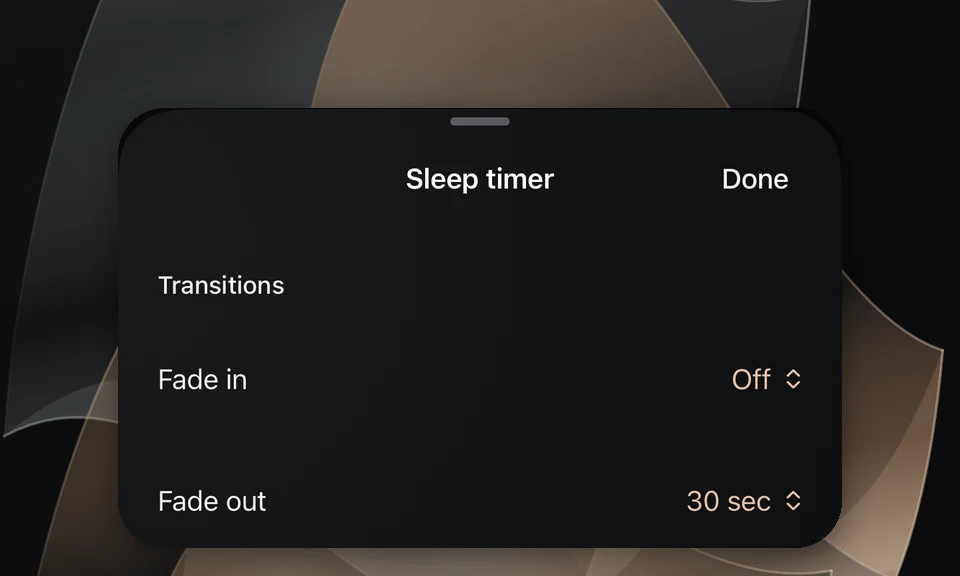
A phone call carries through the wall. Try the soft rush of Green under the conversation. If it feels too bright, ease the Tone dial toward Mellow and pick up where you left off.
Find your sound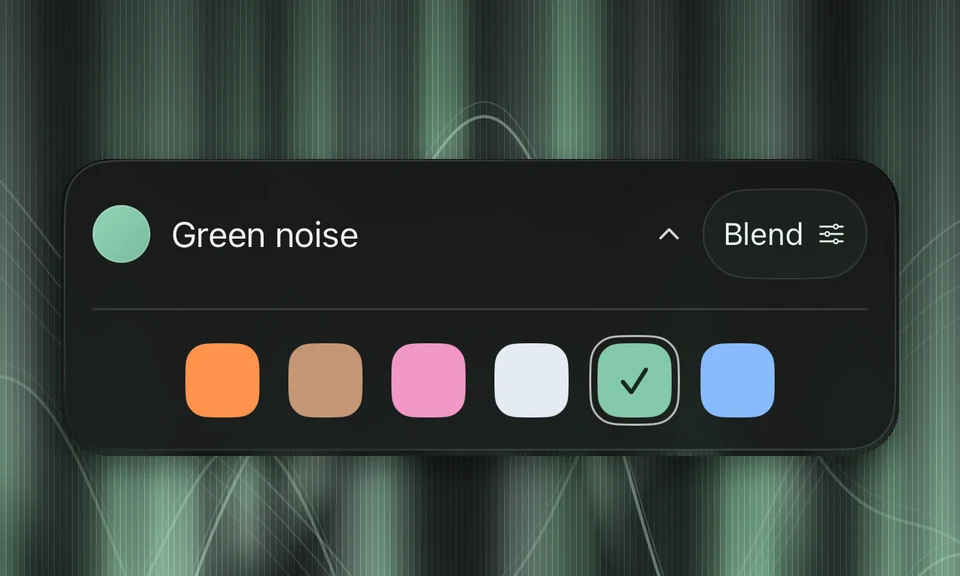
Even the vents have an unfamiliar hum in a hotel room. With Pro, save the mix you use at home. One tap in Presets brings it back, even offline.
Save a favorite sound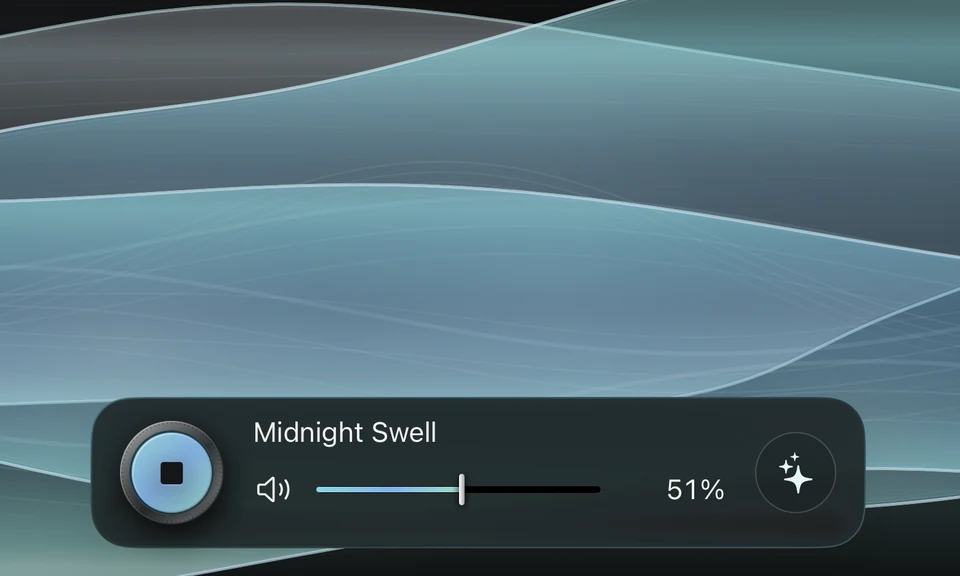
Long before a phone could make pink noise, people measured the hiss in electrical circuits and found clever ways to make a room sound like a running fan.
1928
At Bell Labs, John B. Johnson measured tiny fluctuations in voltage across a resistor, even with no voltage applied. Warming the resistor made the fluctuations stronger. A quiet circuit had a hiss of its own.
1962
Jim Buckwalter’s fan-powered SleepMate brought a steady rush of air to the bedside. The idea grew out of wanting a familiar sound in a hotel room. Turning the housing changed the tone.
Today
OrangeNoise generates fresh audio on your device as it plays. Move the Tone control to soften the high end, or let a sleep timer bring the sound gradually to a stop. It all works offline.
Noise colors
A note has a repeating pattern. Noise continually varies across a range of frequencies. Its “color” describes the balance of bass and treble you hear.
Start free with OrangeNoise, Brown, Pink, White, Green and Blue. Adjust the tone, use Night Display or set a sleep timer for up to two hours.
A one-time Pro purchase adds custom blends, saved sounds, nightly routines and more visuals.
Compare Free and ProStart with six free sounds on iPhone or iPad. Choose one, soften it to taste and keep listening with the screen locked.
OrangeNoise · Sleep & Focus
Try a soft hiss while you read or a low, rainy rumble at bedtime. Once it sounds right, lock the screen and let OrangeNoise play. A sleep timer can fade it out.
Six sounds. Three Silk visuals. Free to begin.
iPhone, iPhone Duo & iPad.
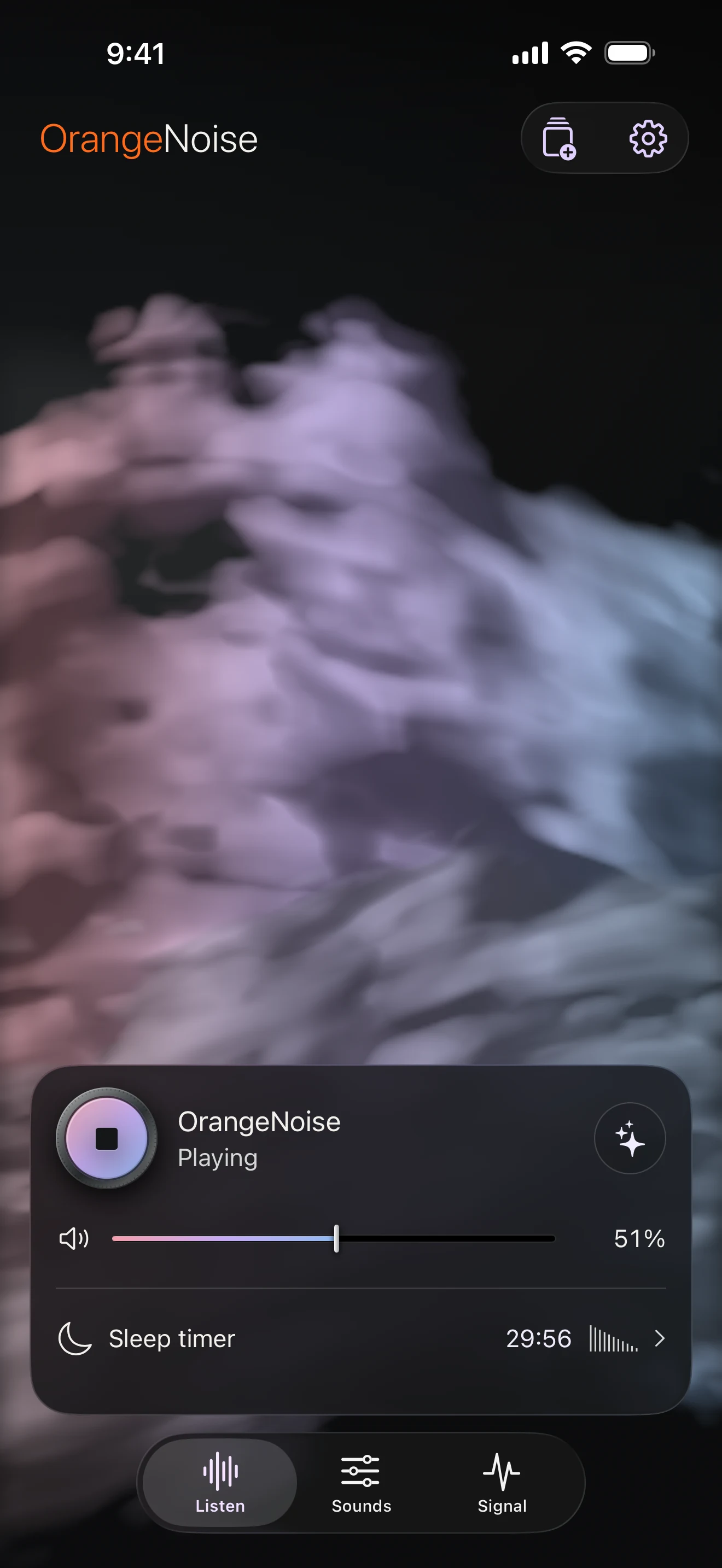
Six sounds, generated live on your device. No looping recordings. Listening works offline.
Volume and Tone are included. OrangeNoise also has Rain and Softness controls. Listen in the background or with your screen locked, with timers up to two hours and fades up to 30 seconds.
Mix five noise colors, add audio Motion, and keep six named sound presets. Pro also adds sharing, two saved routines, timers up to ten hours or Indefinite, and fades up to five minutes. Try the adjustable 60-second Blend preview free before deciding.
The free Start or Stop OrangeNoise action toggles your current sound from Control Center, Shortcuts, or a supported iPhone Lock Screen. Configure your sound in the app first. A separate Pro action starts a saved routine.
Listen, Sounds & Signal
Start in Listen and swipe to Sounds. You can soften the top end of a hiss as it plays, then go straight back to your book. With Pro, Signal shows what you’re hearing.
Scroll through the three views.
Watch the visual while you listen.
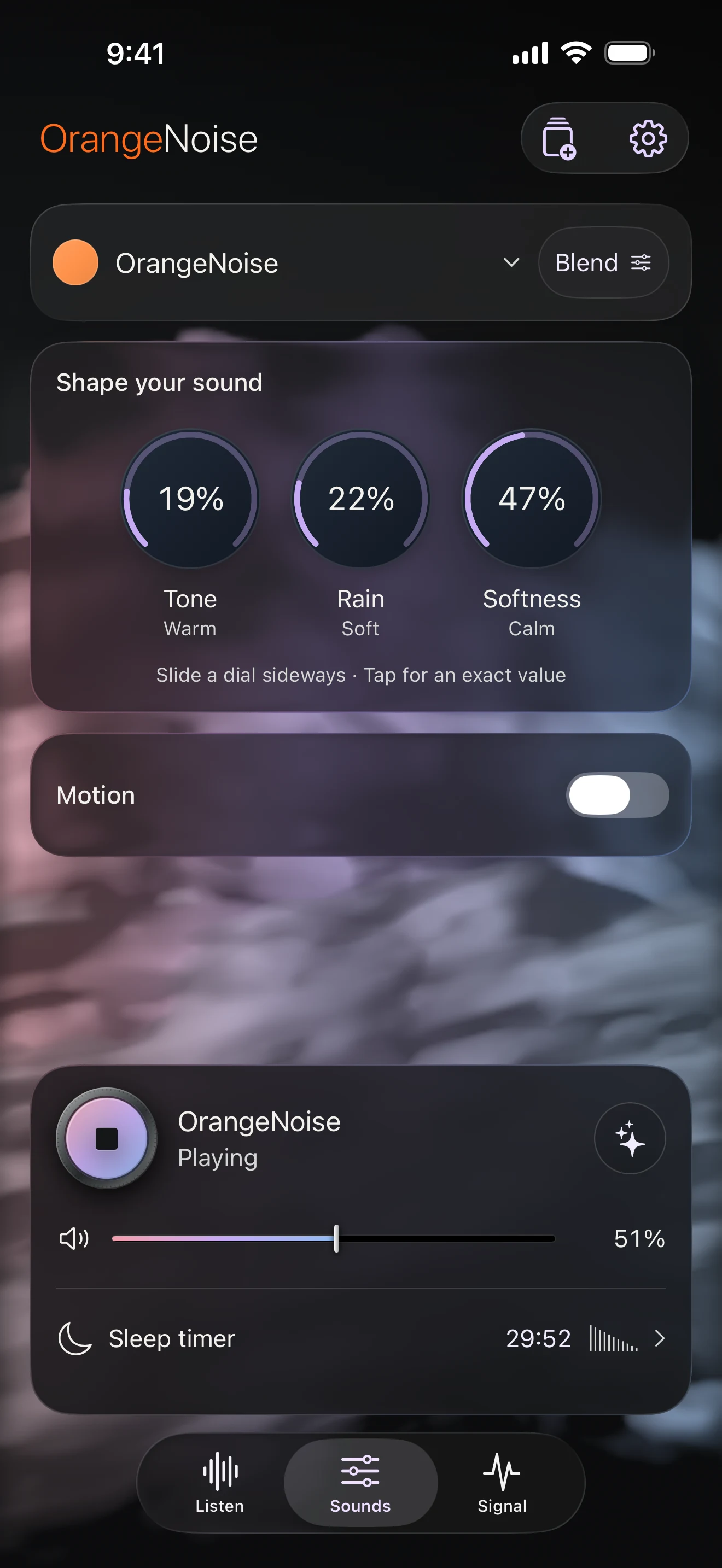
Adjust your sound by touch.
See the frequencies in your sound.
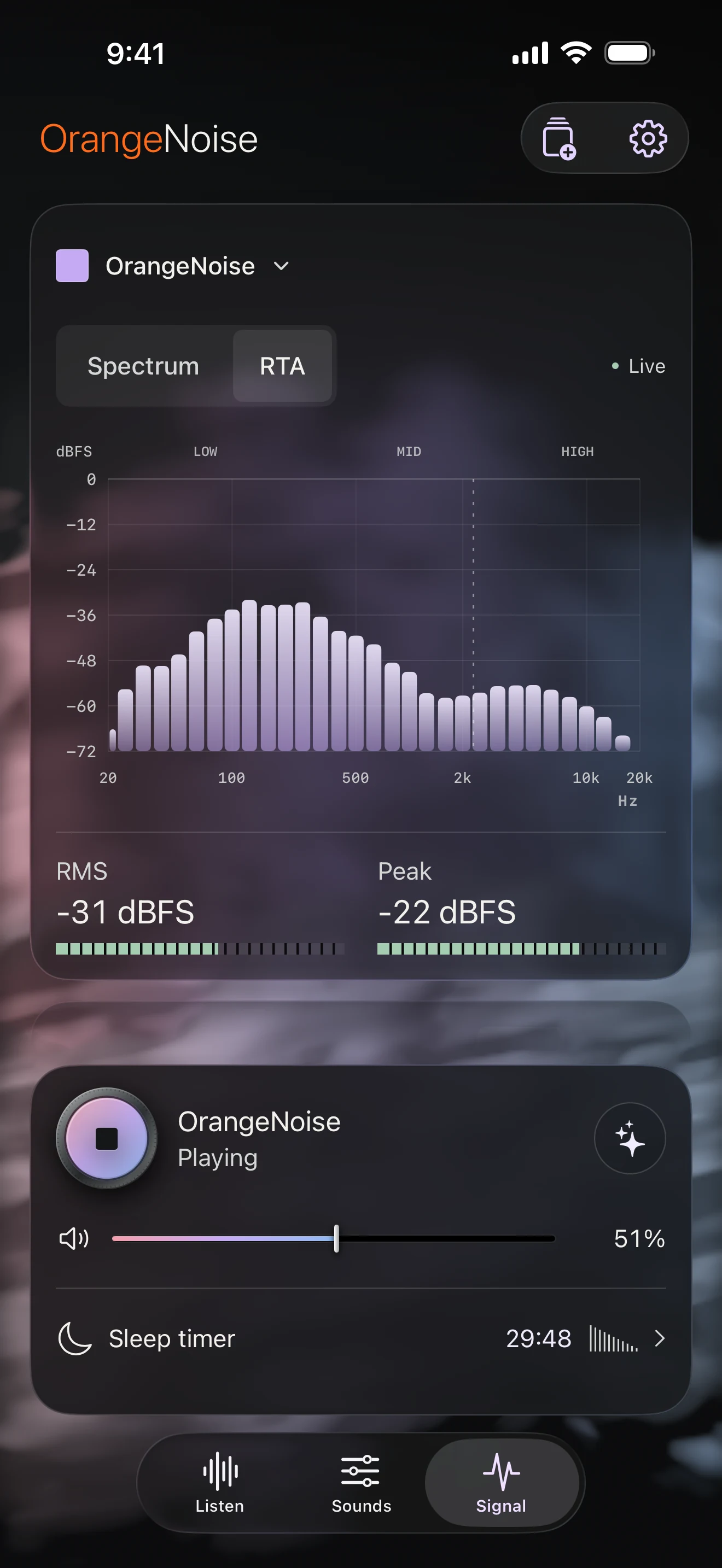
Listen and Sounds are included free. Clouds, custom app colors and the Signal view shown here are part of Pro.
Keep your place. Tap the sound name to choose a different color. Adjust Volume and Tone while it plays.
Make room for the sound. The playback controls stay in reach while you adjust a sound. Presets and Settings open over the listening view and slide away when you’re done.
Twelve styles across four collections. Each responds to the sound generated inside OrangeNoise, without using your microphone.
Three Silk styles are free: Suspended silk, Open cocoon, and Folded light. Pro adds Aurora veil, Tidal glass, Moonlit water, Opal bloom, Cloud chamber, Cloud tide, Silver lining, Nebula bloom, and Wind clouds.
Yes. The free appearance follows your sound. Pro App color lets you choose 15 single colors or four blends—Rainbow, Twilight, Ocean, and Sunset—without changing the audio. Pro also adds optional Aurora glow over any visual.
Choose Subtle, Balanced, or Expressive sound response and set travel speed. Silk, Atmospheres, and Clouds also have morph speed; Clouds adds Soft–Clear clarity. Each category remembers its settings. Visuals settle when playback stops and respect Reduce Motion.
The quiet hours
Leave OrangeNoise open for a dim clock you can read at a glance. Prefer a dark room? Lock the screen and the sound keeps playing.
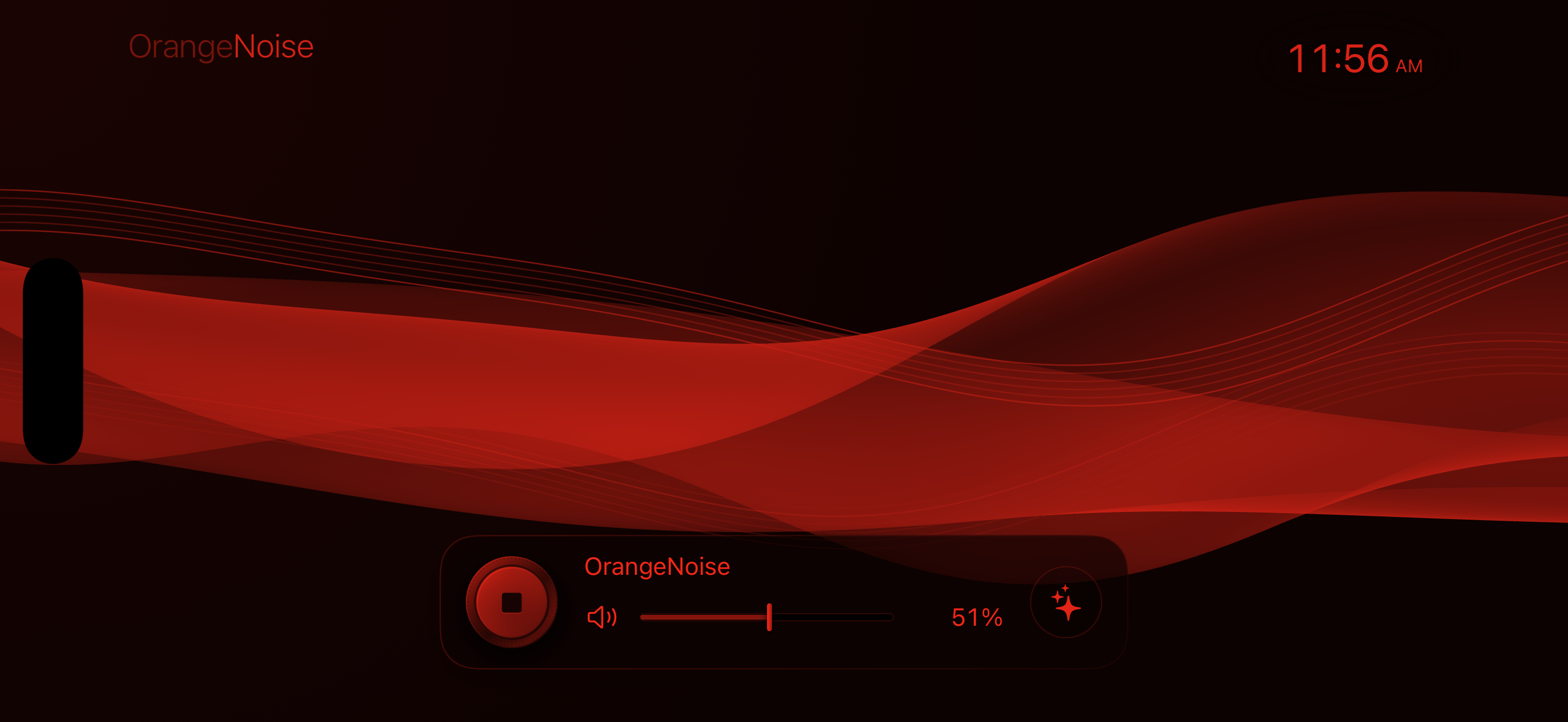
Set a timer for up to two hours in the free app and choose a fade of up to 30 seconds. With Pro, you can save a nightly routine or let the sound play indefinitely.
Night Display is free. Pro adds longer listening and routines. Display and audio timers stay separate.
Choose Normal color or Night red, an inactivity delay, and separate brightened and dimmed levels. Tap to brighten gently. Night Display needs OrangeNoise open on an awake, unlocked device; it cannot wake a locked screen. The clock has three sizes and follows your device’s local time.
With Pro, arrange saved sounds into time windows and choose their fades. End after the last window, at a time, or keep the final sound going until you stop. A single agenda holds the night together. Saving changes does not start sound.
Yes, with Pro. Schedule an in-app start and keep OrangeNoise in the foreground and unlocked while it waits. Schedule it again each night. For a start while the device is already locked, create your own Time of Day automation in Shortcuts using Start OrangeNoise Routine. OrangeNoise cannot open Apple StandBy itself.
One familiar app
Turn your iPhone sideways for a clock on the desk, or open Sounds beside the player on a larger screen. The same six sounds work across devices.
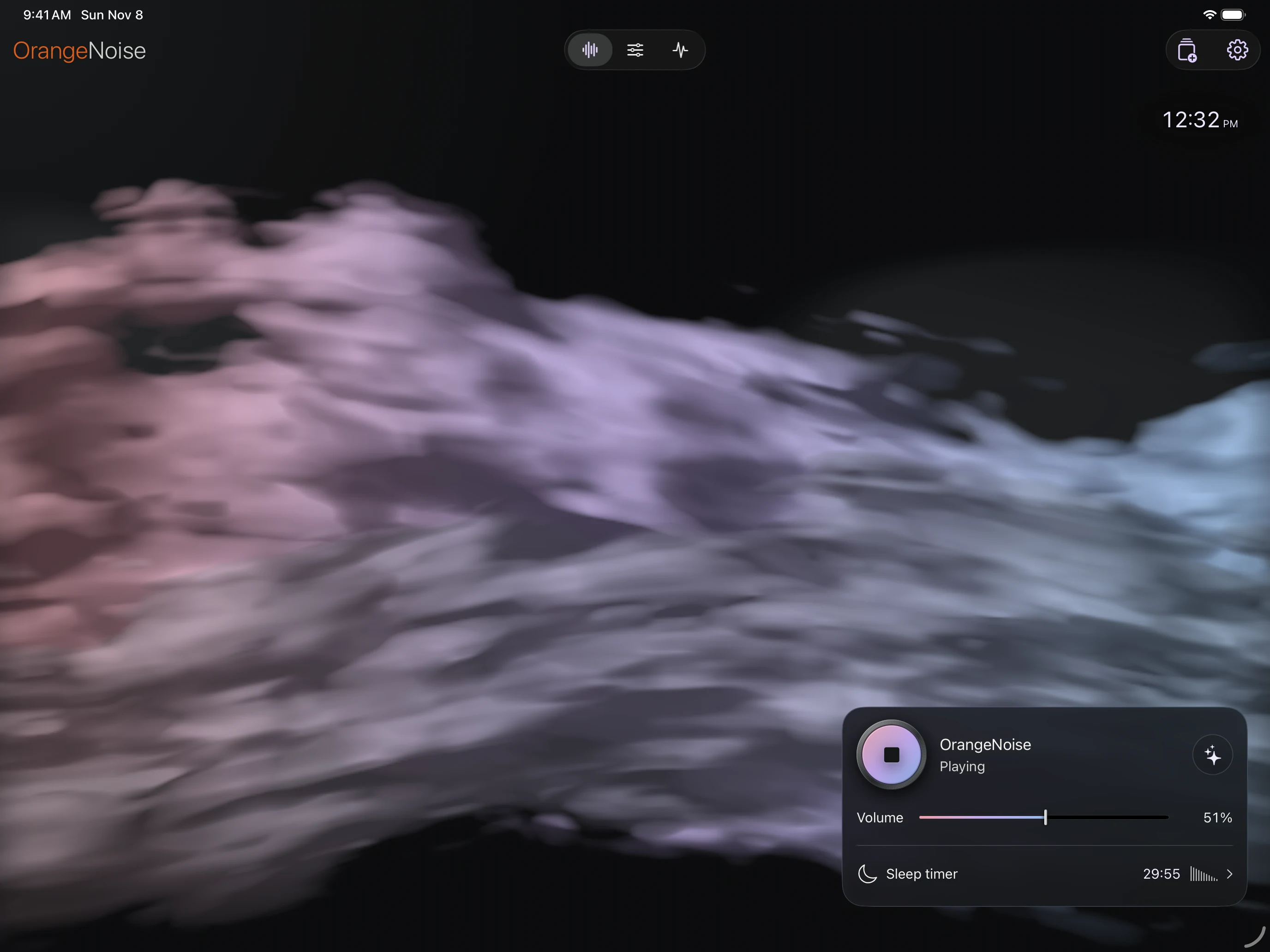
The same sounds, visuals, and saved favorites, with room for each screen. The adaptive layouts are included free; Pro features still require Pro.
In portrait, Listen, Sounds and Signal share a full visual backdrop and floating glass controls. Swipe through the three views or tap their navigation buttons. Turn Listen sideways for the immersive landscape view, clock and playback controls. Presets and Settings open as sheets you can swipe down.
The full app works in portrait or landscape. Controls and editors float at the side or near the bottom as your window changes. With Pro, Blend’s five color controls live in Sounds, while Signal uses the clear space beside or above the workspace.
A continuous visual fills the display. Controls move from the bottom when closed to the right when open, or the lower usable surface in tabletop. Editors stay in the floating workspace. Night Display works in every Duo Listen posture.
No. Use the same app and the Apple Account that owns Pro; choose Restore purchases if needed. With Pro, share saved sounds and complete routines as OrangeNoise files between iPhone, Duo, and iPad.
Six sounds are free. Pro adds more ways to shape and save them with one purchase through Apple.
Six sounds. Three Silk styles. Adjust the warmth of your noise, use Night Display, and set timers up to two hours.
More visuals and colors, blends, saved sounds, and nightly routines. Use the tone generator in Signal to set an exact pitch or layer three tones.
Six sounds, Tone, and OrangeNoise Rain and Softness. Three Silk visuals and their movement controls. Sound-following color, clock, Night Display, and adaptive device layouts. Background listening, quick playback controls, two-hour timers, 30-second fades, and a 60-second Blend preview.
Nine more visuals, Aurora glow, cloud clarity, and App color. Your own blends, audio Motion, six sound presets, two routines, sharing, and Signal. Use Pure tone for up to three pitches, five waveforms, timed pulse and stereo movement. Timers up to ten hours or Indefinite, with fades up to five minutes. No subscription.
Sound is generated on your device. The app has no ads or accounts. Optional analytics start only if you choose to share. Manage sharing or read app privacy.
Signal · OrangeNoise Pro
Start with a steady 440 Hz sine wave. Add 660 Hz and 880 Hz to hear the three pitches together. The new tone generator in Signal lets you choose every pitch yourself.
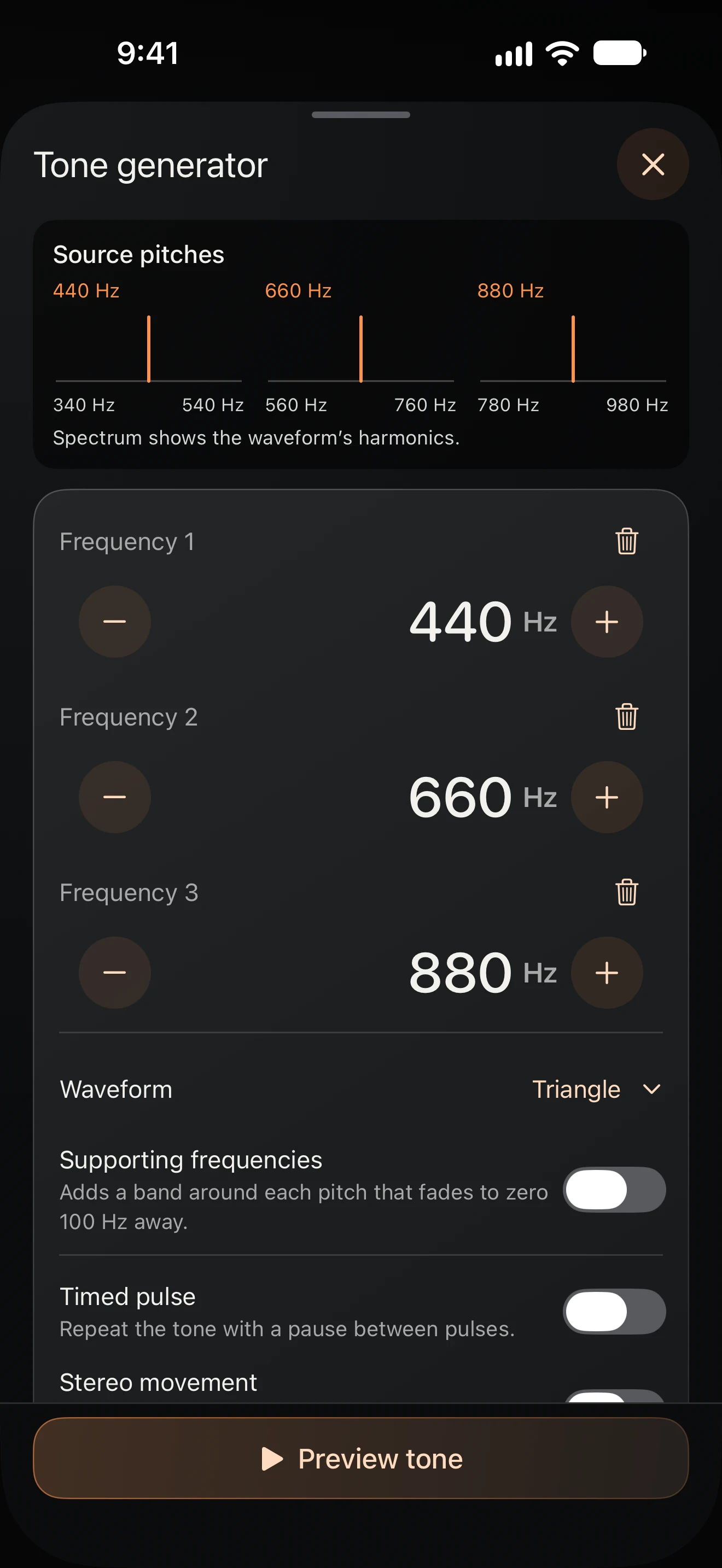
The tone generator is included with your one-time Pro purchase.
Start with six free sounds on iPhone or iPad. You can listen offline from the first session.
Choose your first sound, set a timer or build a routine. Each section follows the controls you’ll find in OrangeNoise.
Sound
All sound is generated live on your device, without looping recordings. Listening works offline.
In Sounds, tap the sound name to choose OrangeNoise, Brown, Pink, White, Green or Blue. For a first listen, compare the soft rush of Pink with the lower rumble of Brown. Adjust Volume and Tone as it plays. The signature OrangeNoise sound also has Rain and Softness controls.
With Pro, Blend mixes five noise colors. Try the free 60-second preview to compare Original and My blend before deciding. Audio Motion changes a sound over time with adjustable speed and depth; it is separate from visual movement.
Pro gives you six named sound presets. The Presets icon gains a small + when your current sound can be saved. Opening it still brings you to your library; tap a saved sound to play, or choose Save current sound to select a slot.
Empty slots are highlighted while saving. If all six are used, choose one to replace and confirm before overwriting it. Drag presets into your preferred order. Changing Volume keeps a matching preset name and does not switch your saved sound.
Share sound and Import sound are in each preset slot’s ••• menu. Complete routines can be shared too, with their sounds included. Importing does not start playback.
Signal measures the sound OrangeNoise generates on your device. Spectrum shows how the output is distributed across frequencies. RTA groups that output into one-third-octave bands. RMS shows the average signal level and Peak shows its highest level. The meters use dBFS, a digital output scale. Your microphone is never used.
Select or preview a tone to see Source. It draws one marker per pitch you enter and shows the optional supporting band. Choose Spectrum or RTA to see what is actually playing, including any harmonics from the waveform.
Workspace
Listen, Sounds and Signal share a living backdrop on portrait iPhone. Floating glass keeps your controls readable, while the player stays within reach.
Swipe horizontally between the three main views, or use their navigation buttons. Dials and sliders still adjust their values; vertical swipes scroll longer controls. Your sound keeps playing as you move around.
The sound capsule opens your color choices. Matching dials make sound shaping and blending consistent, and scrolling controls soften as they pass beneath the player. Presets and Settings open as separate sheets with a handle: swipe down or choose Done to return.
The listening workspace is included free. Pro features, including Clouds, Blend, saved presets, routines and Signal, still require Pro.
Visuals
Your sound and your view can feel right together. Appearance choices stay on your device, separate from saved sound presets.
Open Settings → Listen visuals, then open a category to choose its type and controls. The visual chooser in Listen lets you switch types without leaving the view.
Choose Subtle, Balanced or Expressive sound response, then set Travel speed from Almost still to Fast. Silk, Atmospheres and Clouds also have Morph speed. Each category remembers its choices. Existing saved preferences are preserved when you update.
Pro Clouds adds Soft–Clear clarity. Wind clouds drift and reshape as they move; Expressive increases deformation. Optional Pro Aurora glow adds light over any visual, including free Silk styles.
Visuals respond to audio generated inside the app, settle when playback stops and respect Reduce Motion. Clouds and Aurora help.
The free appearance follows the noise color. Pro App color lets you keep one of 15 single colors, or choose Rainbow, Twilight, Ocean or Sunset, regardless of the sound.
The palette follows your visuals, playback controls and clock. The sound capsule and Blend dials retain their sound colors so they remain identifiable. App color changes appearance, not audio.
Your device
The adaptive layouts are included free. These examples also show Pro features, including Clouds, App color and the tone generator.
Listen, Sounds and Signal share a full visual backdrop in portrait, with glass controls and a persistent player. Swipe between those screens or use the navigation buttons. Sounds adds a compact color chooser and matching dials; Pro Signal shows the sound while the visual continues behind it.
Turn Listen sideways for a full visual, top-right clock, Play/Stop, Volume and visual chooser. Sounds, Signal and editors remain portrait. Presets and Settings have a grab handle and slide down when dismissed.
The app works in portrait or landscape. The floating workspace moves beside or below the visual as your window changes. In Sounds, Blend puts all five color controls together. Open Pure tone in Signal to adjust pitches in that workspace while the graph stays in view. Native glass navigation is available on iPadOS 26 or later.
A continuous visual fills the display. Controls move from the bottom when closed to the right when open, or the lower usable surface in tabletop. Editors remain in the floating workspace; Signal uses the space beside it. Night Display works in every Duo Listen posture.
Use the same app and Apple Account on your devices. Pro sounds and routines can be transferred as OrangeNoise files; this is not automatic syncing.
The quiet hours
Night Display controls the view. Your sleep timer or routine controls the sound. Their durations are separate.
Night Display is included free. Choose Use Auto-Lock, 15 or 30 minutes, one or two hours, or All night. It needs OrangeNoise open in landscape Listen—or any Duo Listen posture—on an awake, unlocked device.
Choose Normal color or Night red, an inactivity delay and separate brightened and dimmed levels. After inactivity, it dims in any room lighting. The first tap gently brightens without operating playback controls; Night red stays red. Optional movement brightening responds to physical device movement. Dimmed visuals use a reduced frame rate.
The app does not sense room light, change system brightness, silence other apps or wake a locked screen. Use your device’s Focus options for quiet notifications.
The top-right clock has Small, Medium and Large sizes and follows your device’s local time and 12/24-hour preference. It appears in landscape Listen on iPhone, and in Listen on iPad and Duo.
Pro includes two saved routines. Add time windows and place your saved sounds into them. Edit the sound, time and fades inside each window, including the starting fade. Your original sound, later changes and ending share one agenda. Saving changes does not start audio.
Start now or schedule a time. End after the last window, at a chosen time, or keep the final sound going until you stop. During a crossfade, the app shows the transition and gently changes the sound color; a chosen Pro App color keeps your palette.
For an in-app scheduled start, keep OrangeNoise in the foreground and unlocked while it waits. Schedule it again each night. Leaving the app or locking the device before the start cancels the waiting run. Play stays idle until sound begins; changing volume does not start it. Tapping Play early starts the current sound and cancels the schedule.
The starting fade reaches the volume selected when the routine begins. Once audio starts, the app releases its keep-awake hold so normal Auto-Lock can take over. Audio can continue while locked. Apple StandBy may then appear when its own requirements are met; OrangeNoise cannot force it open.
To start when already locked, create a Time of Day automation in Shortcuts with the Pro Start OrangeNoise Routine action. You create and enable that automation yourself.
Everyday access
The free Start or Stop OrangeNoise action toggles your current sound. Configure the sound in the app first.
On iOS or iPadOS 18 or later, add it to Control Center; supported iPhones also offer it as a Lock Screen control. In Shortcuts, add the action to your own shortcut. Pro includes a separate Start OrangeNoise Routine action for a saved routine.
Set up Control Center and ShortcutsFree + Pro
Plenty to begin. More to make your own. Pro includes everything in Free, with one optional purchase and no subscription.
3Silk visualsYour quiet, in motion.
12Total visualsClouds, light, water & more.
| Feature | FreeIncluded with the app | ProOne purchase. Yours to keep. |
|---|---|---|
| Sound | ||
| Six sounds | All sixOrangeNoise, Brown, Pink, White, Green and Blue. | All sixThe same six sounds. |
| Sound controls | Shape your soundVolume and Tone; Rain and Softness for OrangeNoise. | Add audio MotionAll free controls, plus Motion for noise colors and blends. |
| Blending | 60-second previewAdjust five colors and compare your mix. | Keep your blendPlay your five-color mix and save it. |
| Signal | Not included | See your soundLive spectrum, one-third-octave analyzer and output meters. |
| Pure tone generator | Not included | IncludedLayer up to three pitches. Choose their waveform, pulse and stereo movement. |
| Your view | ||
| Visual styles | 3 Silk stylesIncluding their movement controls. | 12 stylesSilk, Light & flow, Atmospheres and Clouds. |
| Color | Follows soundThe view takes on your sound’s color. | Your own paletteFollow sound, 15 single colors or 4 blends: Rainbow, Twilight, Ocean and Sunset. |
| Clouds & Aurora | Not included | Clarity + glowSoft–Clear cloud clarity and Aurora glow over any visual. |
| Clock & device layouts | IncludedPortrait glass controls, swipe navigation, 3 clock sizes and adaptive device layouts. | IncludedThe same glass controls, navigation, clock and device layouts. |
| Night Display | IncludedNight red or Normal color, adjustable dimming and gentle tap or optional movement brightening. | IncludedThe same display controls. Audio duration is separate. |
| Your listening | ||
| Session length | Up to 2 hoursChoose your audio timer. | Up to 10 hoursOr Indefinite, until you stop. |
| Fades | Up to 30 seconds | Up to 5 minutes |
| Saved sounds | Not included | 6 named presetsDrag to reorder; your last setup is remembered. |
| Nightly routines | Not included | 2 saved routinesTime windows, fades and scheduled starts. Choose an ending or Until I stop. |
| Sharing | Not included | Share + importSaved sounds and complete routines across your devices. |
| Background playback | IncludedListen in the background or with the screen locked. | IncludedThe same playback, with longer sessions available. |
| Quick access | Playback toggleControl Center, supported iPhone Lock Screens and Shortcuts. | Routine action tooAll free playback access, plus Start OrangeNoise Routine in Shortcuts. |
Apple shows the current Pro price in the app. Use the Apple Account that owns Pro on your devices, and choose Restore purchases if needed. Purchase and restore help.
Your choice
Starting with version 3.0, optional analytics can help us improve OrangeNoise. Sharing is off until you choose it, and no Pro purchase is required.
Open Settings → Privacy & analytics → Share analytics to turn sharing on or off. Declining changes none of your features. The app does not record audio, and activity from before your choice is not uploaded.
Turning sharing off stops new collection, clears unsent events and requests deletion of shared data. Keep the app installed and reopen it online so that request can finish automatically.
Signal · OrangeNoise Pro
Start with a single pitch. Add a second or third to hear them together. The tone generator is included in the same one-time Pro purchase.
Waveform changes the character of all the pitches together. Sine gives you a clean tone. Triangle adds gentle harmonics, while sawtooth, square and Pulse wave (25%) have a brighter buzz.
Turn on Supporting frequencies for a soft band around each pitch. At 440 Hz the band is strongest near the center and fades to zero at 340 and 540 Hz. At the lowest and highest pitches, the band stays within the generator’s frequency range.
Timed pulse repeats the whole sound. Try a Pulse length of 125 ms and a Pause of 250 ms. Each field accepts a whole number from 1 to 60,000 milliseconds. Turn Timed pulse off for a continuous sound.
Turn on Stereo movement to hear the sound move left and right. Round trip sets the time for one complete back-and-forth movement, from 1 to 60 seconds. Try 8 seconds with stereo headphones. You can use either effect on its own or combine them. The sleep timer sets the length of the listening session.
After closing the editor, open Presets beside Settings and choose Save current sound. Name an empty slot or select a preset to replace. The preset remembers the pitches, waveform, supporting band, pulse and stereo movement. Pick that preset in a routine’s sound window to use it again.
Search for an answer about playback, timers or purchases.
Find help with playback, timers, purchases and privacy. For a question about your device, contact app support.
Check the app’s Volume control and your device volume. Confirm where audio is playing; Bluetooth headphones or speakers may still be connected. Pause other audio, then try playing OrangeNoise again.
Check whether the sleep timer has ended or another app has interrupted playback. The iOS app supports background and lock-screen listening. Choose a longer timer when you need a longer session.
Open Settings in the app and choose Restore purchases. Use the Apple Account that bought Pro and make sure your device is online. You can also restore from the Pro screen. See what happens to your current sound.
Starting in 3.0.2, upgrading or restoring Pro from Settings keeps your current sound, volume, and sleep timer. If you’re listening, playback continues. If you’re stopped, it stays stopped.
If you prefer the mix you previewed in Settings, turn on Use this blend after unlocking before you buy. When you open Blend directly from Sounds, choose Keep my blend to unlock Pro with that mix.
If you see Check upgrade availability, tap it to reload the price from Apple. Once the price appears, tapping the priced button opens Apple’s purchase sheet for you to confirm.
Free timers go up to two hours. Pro adds longer durations up to ten hours and an Indefinite option. A new free session starts with a 30-minute timer; choose the duration that works for you.
Slide a dial sideways to change its value. Slide vertically to scroll the screen. Tap the dial to enter an exact value, then choose Apply. All sound dials use a consistent size and appearance; Blend dials keep their individual noise colors.
Use the sound capsule at the top of Sounds to choose another sound. Choose Blend to open the five-color mix. Dial and slider gestures adjust their controls rather than changing the main screen.
Yes. Open the Blend preview in the app and adjust the five colors before or during a free 60-second preview. Compare Original and My blend to hear the difference. Pro lets you keep listening to the mix and save it.
Your visual fills the window behind a floating workspace. Listen keeps playback close by; Sounds places its sound controls above the same Play and Volume footer. With Pro, select Blend to adjust the five noise colors directly in that workspace.
Settings, Presets and routines also open in the workspace. Use Back or Done within it. The app asks before discarding an unsaved routine. File selection, sharing and purchase confirmation use the system’s own interfaces.
In a wide enough window, controls sit on the right; in a narrower window they sit near the bottom. The full app works in portrait and landscape. Longer editors scroll inside their workspace. With Pro, Signal uses the clear area beside or above the controls while the visual continues behind them.
Listen shows the clock at the top right. It steps out of view while an editor is open. Choose its size in Settings → Listen clock. Night Display remains available in landscape Listen.
The adaptive layout is included free. Existing Pro features still require Pro. Native Apple glass is used on supported systems; earlier systems use their supported appearance.
The same OrangeNoise app adapts to Duo. In Listen, one continuous visual fills the display. Controls float near the bottom when closed, on the right when open, and on the lower usable surface in tabletop. In Listen, the clock sits near the top right of the visual. It steps out of view while you adjust another screen.
Use the device’s navigation for Listen, Sounds, and Signal. Settings, Presets, routines, Blend, and other app editors open in the floating workspace, with Play and Volume beneath them. Back or Done returns within that workspace. File selection, sharing, and purchase confirmation use the system’s own interfaces.
With Pro, Signal uses the area beside the controls—or above them in a compact layout. Your sound, presets, routine behavior, and Pro features work as they do on the other devices. The Duo layout itself is included free.
Night Display works in Duo Listen when closed, open, or folded. Opening an editor keeps its controls readable; return to Listen to settle back into your night view. Your chosen inactivity delay and display duration still apply. Night Display needs the app open and the device unlocked.
To move a saved sound or complete routine from another device, use Share and Import. No separate Duo app or Pro purchase is required when using the Apple Account that owns Pro; choose Restore purchases if needed.
On an iPhone without a folding display, turn the Listen screen sideways for an immersive view with Play/Stop, Volume, and a visual chooser. Turn upright to reach the other screens and settings. Sounds, Signal, and editors stay in portrait on iPhone. iPad supports the full app in portrait and landscape, with controls and editors in a floating workspace; see iPad guidance. Duo keeps its adaptive navigation and floating workspace available as the display folds or rotates; see Duo guidance.
Open Settings → Landscape clock under Appearance & display, or Listen clock on iPad and Duo. Choose Small, Medium, or Large. The clock stays at the top right. Small is the default.
The clock appears in landscape Listen on iPhone, and in Listen on iPad and Duo, and uses your device’s local time and 12/24-hour preference. Its color follows your sound, and it stays in front while the visual flows behind it. It also follows your Pro App color choice. Clock preferences are included free and do not change saved sounds.
Both are included free. Look for the action named Start or Stop OrangeNoise. It starts the current sound when playback is stopped, and stops it when it is playing.
Control Center: On iOS or iPadOS 18 and later, open Control Center, enter edit mode, and choose Add a Control. Search for OrangeNoise and add its control. On iPhone, you can also choose this control when customizing the bottom controls on your Lock Screen.
Shortcuts: Create or edit a shortcut in Apple’s Shortcuts app. Search for OrangeNoise in the action list, then add Start or Stop OrangeNoise. You can combine it with other actions in your shortcut.
This playback toggle does not select a preset or start a nightly routine. Configure your sound in OrangeNoise first. Pro is still required for Pro sound features.
Routine automation · Pro: In Shortcuts, add Start OrangeNoise Routine and choose a saved routine. For a scheduled start while the device is locked, create a Time of Day personal automation, add this action, and choose Run Immediately. Shortcuts controls when it starts; the routine controls its sounds and ending. The action starts the routine immediately when invoked, regardless of the routine’s in-app start time. You create and enable the automation yourself.
Presets and Settings slide up as sheets with a handle at the top. Swipe the sheet down or choose Done to return. Presets has no separate Play button: tapping a saved sound starts it. Opening Presets does not force you to save your current sound.
iPad and iPhone Duo keep their floating workspaces. Use Back or Done within those editors.
With Pro, open Presets using the icon beside Settings, or through Settings → Presets. A small + on the icon indicates that your current sound can be saved. Opening Presets always lets you browse and play existing sounds first.
Replacing asks for confirmation and updates routines that use that preset. Saving does not start a different sound. Choose Cancel to return to browsing without replacing anything.
Tap a saved sound to play it. Drag its handle to rearrange the library. Use ••• to rename, replace, share, import or clear. Volume changes keep the matching preset name; changes to the sound’s character return to the sound name until saved again.
Nightly routines require Pro. The agenda and scheduling options described here require version 2.3.3.
First save the sounds you want to use, then open an empty routine slot in Presets. The new routine starts with one empty window. Your starting sound, every change, and your ending stay together in the night agenda.
Use the editor’s ••• menu to rename, save changes, or delete the routine. The routine slot’s menu also offers sharing and importing. Clearing a saved routine leaves its sound presets and any currently running night intact.
During a crossfade, the app shows which preset is becoming the next and gently changes the sound color. A Pro App color choice keeps your chosen palette. Editing saved sounds affects future starts; an active or scheduled routine keeps the sounds captured when you started or scheduled it.
Yes, with Pro. Open the routine, tap Start, choose At a time · app open, and set a time such as 10:30 PM. Save, then explicitly tap Schedule routine. Set End to Until I stop for the rest of the night, or choose an end time.
Keep OrangeNoise in the foreground and the device unlocked until the start. The app keeps the display awake while waiting. This is a one-time scheduled run: schedule it again each night. Leaving the app or locking the device before the start cancels the waiting run; OrangeNoise cannot start itself as a background alarm.
While waiting, the Play button stays idle. It changes to Stop only when audio begins. Adjusting volume does not start playback or cancel the schedule. If you tap Play early, your current sound starts and the scheduled run is canceled.
The initial fade rises to the volume you have selected when the scheduled routine begins. Later windows keep their saved sound levels.
Once sound starts, OrangeNoise releases its keep-awake hold so your normal Auto-Lock can take over, even if Night Display was set to All night. Audio continues with the device locked. On a supported iPhone, Apple’s StandBy can appear when its own requirements are met, including charging, a stationary landscape position, and StandBy enabled. OrangeNoise cannot force locking or open StandBy. If Auto-Lock is set to Never, it will not lock automatically.
For a start while the device is already locked, use the separate Start OrangeNoise Routine action in Shortcuts.
In Presets, open a saved sound’s ••• menu and choose Share sound, or a routine’s menu and choose Share routine. The .orangenoise file contains the saved settings; complete routines include all the sounds they need.
On the receiving iPhone or iPad, save the file somewhere you can find it, such as Files. In OrangeNoise, use a sound slot’s ••• menu → Import sound, or a routine slot’s menu → Import routine. Empty slots have import menus too.
Review the file, choose where to save its contents, and confirm any replacements. Choosing a slot’s menu does not automatically overwrite it. Identical saved sounds can be reused; imports still use the six sound slots and two routine slots. Pro is required to save imported content.
Importing does not start playback. Use the explicit Listen action after a sound import, or review a routine and tap Start. Replacing a saved sound affects future routine starts; a night already playing keeps its starting sounds.
OrangeNoise files work between iPhone, iPhone Duo, and iPad. Other apps control how shared attachments look; artwork in Messages or Files can vary.
Yes. Night Display is included free. Open Settings → Night display and choose 15 minutes, 30 minutes, one hour, two hours, or All night. Use Auto-Lock is the default.
Choose Normal color or Night red, then set When brightened and When dimmed separately. These levels soften the view relative to your device’s brightness; OrangeNoise does not change system brightness. Choose dimming after 30 seconds, one minute, or five minutes, or Never. Listen begins in its normal appearance. After the selected inactivity delay it dims and applies your night color, regardless of room lighting. The first tap returns to your brightened level without operating playback or volume controls; Night red stays red.
Keep OrangeNoise open in landscape Listen—or any Duo Listen posture—on an awake, unlocked device. Leaving the view or app, or reaching the selected duration, returns to normal appearance and iOS Auto-Lock. Night Display cannot wake a locked device. For a full night, keep the device connected to power.
Display and audio durations are separate. Free audio timers go up to two hours; Pro adds up to ten hours or Indefinite. By default, Night Display finishes when sound stops. Turn off Finish when sound stops to keep the view going for your chosen display duration.
In Settings → Night display → Settle into night, choose Dim after inactivity and your preferred color. Night appearance begins after that delay without interaction, even if the TV or room lights are on. It does not rely on screen brightness or sense room light.
Choose Never to keep the normal appearance without automatic dimming or Night red. Otherwise, a tap gently brightens to your chosen night level while keeping the night color. The view dims again after another period of inactivity.
The When brightened and When dimmed levels soften OrangeNoise relative to your device brightness. They do not change the device’s brightness setting. Visuals also use a reduced frame rate while dimmed to reduce rendering work.
It can, while the view is dimmed and OrangeNoise is open. Turn on Brighten when device moves in Night display. A nudge transmitted through the device’s table or stand can brighten it to your chosen night level. No sensitivity adjustment is needed.
Movement brightening is optional and off by default. It detects physical movement of the device, not people moving across the room, and cannot wake a locked device. Night red remains red when the view brightens.
Before settling in, open Control Center, tap Focus, and choose Sleep or Do Not Disturb. In your device’s Settings → Focus, choose which people, apps, and calls may interrupt you.
To turn on Do Not Disturb automatically, open Settings → Focus → Do Not Disturb → Add Schedule. Pick Time for your usual bedtime, or App and select OrangeNoise to activate it whenever you open the app. An app schedule also applies during the day. For a Sleep Focus that follows your bedtime, manage your sleep schedule in the Health app.
Your device controls notifications. The OrangeNoise sleep timer controls when the sound fades out.
App color · Pro.
Open Settings → App color. Follow sound is the free default: the app’s appearance follows the sound you select.
With Pro, choose one of 15 single colors—Orange, Amber, Copper, Coral, Rose, Pink, Lavender, Violet, Blue, Sky, Cyan, Teal, Mint, Green, or Pearl—or four color blends: Rainbow, Twilight, Ocean, and Sunset. Your choice applies across visuals, playback controls, and the landscape clock, including when you change sounds or a nightly routine moves to another preset.
Color blends give a visual several complementary colors. Playback controls carry the palette, while labels and the clock use a readable accent. App color does not change your sound or mix noise colors; use the separate Blend controls to change the audio.
Sound tiles, saved-sound markers, and individual Blend dials keep their original sound colors so you can identify them. App color is saved on this device, separate from sound presets and shared OrangeNoise files. Return to Follow sound whenever you prefer the automatic appearance.
Open Settings → Listen visuals. There are four categories: Silk, Light & flow, Atmospheres, and Clouds. Open a category, then tap a type to use it in Listen. Browsing a category does not change your current visual.
Free: Suspended silk, Open cocoon, and Folded light, plus their movement controls. Pro: Aurora veil, Tidal glass, Moonlit water, Opal bloom, Cloud chamber, Cloud tide, Silver lining, Nebula bloom, and Wind clouds, plus those categories’ controls and Aurora glow.
Sound response sets how strongly the visual reacts: Subtle, Balanced, or Expressive. Travel speed controls how quickly it moves across the screen, from Almost still to Fast. Silk, Atmospheres, and Clouds also have a separate Morph speed, from Almost still to Steady, for how quickly the shapes evolve.
Every category remembers its own type and movement. Adjust its controls to suit your view, or use the category’s reset option to reset its controls while keeping its type, other categories and Aurora choice. Existing saved choices are preserved when you update.
In landscape Listen, use the visual chooser on the control bar to change the type without leaving the view. Return to Settings for movement and appearance controls.
Visuals follow the audio generated by OrangeNoise, without using your microphone. They settle when playback stops and respect Reduce Motion. These choices do not change your sound and are not stored in sound presets. Pro’s audio Motion is separate: it changes the sound itself with adjustable speed and depth.
Both require Pro. In Settings → Listen visuals → Clouds, move Clarity from Soft to Clear for a hazier or more defined cloud shape. It applies across all five cloud types. Tap the control to enter an exact percentage.
Wind clouds sends distinct clouds drifting to the right and reshaping as they move. Choose Expressive sound response for stronger deformation, then adjust Travel speed and Morph speed independently.
Aurora glow is a separate switch under Lighting on the main Listen visuals page. It adds light over any visual, including Silk. It follows you when you switch categories; it does not change audio Motion or your sound.
Optional analytics are available in version 3.0 and later. Sharing is off until you choose it, and no Pro purchase is required.
Optional analytics help us understand which features are useful, where listening or controls need work, and whether people return or choose Pro. You can use OrangeNoise without sharing. Your choice does not change playback, features or purchases.
The invitation waits until listening is stopped and no editor is open. Tap Share analytics to opt in, or choose No thanks or dismiss the card to keep sharing off. If the invitation is interrupted before you respond, it may return the next time you open the app.
If you declined or dismissed the original invitation in 3.0 and have never shared analytics, you may see a revised invitation starting in 3.0.1. Once you answer or dismiss it, the app remembers your choice. If you turned sharing off in Settings, the app skips the revised invitation. You can change your choice any time in Settings → Privacy & analytics.
Main Settings shows your saved choice as Sharing is on or Sharing is off. Pro is not required. If the option is absent, your installed version does not offer these analytics.
Turning sharing off immediately stops new collection on this device, clears unsent events and requests deletion of previously shared data. Deletion is handled automatically; there is no separate Delete or Retry button. Your saved sounds, routines and Pro purchase are unaffected.
No audio is recorded or uploaded. With your permission, limited events describe sounds and visuals used, listening-duration ranges, feature and routine use, return visits, Pro offers and purchase outcomes, playback-start timing ranges, and selected technical error categories. App and OS versions, device category and Free/Pro status help us interpret them.
A random identifier links activity from this app installation, so this is pseudonymous data rather than anonymous counting. It is not linked to your name or an OrangeNoise account. Events do not include saved sound or routine names, exact routine times, microphone audio, screenshots, precise location, advertising identifiers, purchase receipts or payment details. We do not share these events with ad networks.
Data goes to Orangenoise-operated infrastructure on Amazon Web Services. Detailed events expire from analysis after 30 days and linked daily summaries after 90 days; automatic storage cleanup can take longer. Read the app privacy policy for the full details.
Listening works offline. Once analytics has been enabled and activated, eligible events wait in a limited queue on your device. Uploads can happen from any screen while OrangeNoise is open and online, including during playback. You do not need to open Sounds or stop listening.
If you use a Shortcut to start sound without opening the app, eligible listening activity can still be saved. Open OrangeNoise online later to give it an upload opportunity. Uploads are not immediate or guaranteed while the app is closed; old events can expire or be discarded if the queue fills.
You do not need to turn sharing off and on to send events. Turning it off clears the queue and requests deletion instead.
Collection stops immediately on this device and retained shared data is requested for deletion. If you are offline, keep the app installed and reopen it online so the request can finish. The app handles retries automatically. An upload already in flight may finish before the service processes deletion.
If you choose sharing on again before deletion finishes, the app saves that choice and waits for deletion to be confirmed. Sharing then starts with a new random identifier. Activity from while sharing was off or waiting is not uploaded later.
Uninstalling before deletion finishes removes the local identifier needed for that request; any remaining data is then subject to the retention policy. Apple’s purchase records, App Store analytics and system diagnostic sharing are separate from this optional service.
Signal is part of OrangeNoise Pro. Pure tone is available in version 3.1 or later on iPhone, iPhone Duo and iPad.
Open Signal and tap the tuning fork marked Pure tone. If you already selected a tone, the button says Edit tone or Edit tones. Tap the number to type a frequency. For multiple pitches, choose Add frequency. Each pitch must be distinct and between 20 and 20,000 Hz, with up to two decimal places.
You can also reach the tuning fork from Sounds. On portrait iPhone, tap the current sound to expand the chooser first.
If you’re using version 3.0.2 or earlier, update OrangeNoise in the App Store to see these controls. Your existing Pro purchase includes them. Follow the tone setup guide.
Tap Preview tone to listen. When it sounds right, close the editor with the ×, or swipe down from the top of the editor. The pitches and effects stay selected, and playback continues.
To keep a tone ready in silence, tap Stop preview before closing. To name it for another session, open Presets → Save current sound. How to save a preset.
Turn on Timed pulse, then enter Pulse length and Pause in milliseconds. For one second of sound and half a second of silence, enter 1000 and 500. The Pulse wave (25%) choice in the Waveform menu changes the tone’s character. Timed pulse gives any waveform that repeating rhythm.
To hear the tones travel left and right, also turn on Stereo movement and try stereo headphones. See the timing controls on iPhone.
OrangeNoise measures its own generated audio. Spectrum shows its frequency content. RTA groups the output into bands, and a pitch near a band edge can register in neighboring bars. RMS and Peak show digital output levels. Signal never uses the microphone.
Choose Source to see your exact programmed pitches, even while stopped. One 440 Hz sine wave with Supporting frequencies off shows one source marker. Other waveforms add harmonics to the measured output. Switching on Supporting frequencies adds a softer band around each pitch.
OrangeNoise works without an account or analytics. Sound is generated on your device. Optional analytics in version 3.0 and later begin only when you choose to share.
Updated November 25, 2026
Version 3.0 introduces the optional app and listening analytics described below. They remain off until you choose Share analytics. Earlier public versions do not send these analytics. TestFlight activity is kept separate from App Store activity.
We do not include advertising networks or cross-company tracking in the app. Your analytics choice does not affect playback, features or Pro access.
OrangeNoise may invite you to share when listening is stopped and no editor is open. Choose Share analytics to opt in. Choosing No thanks or dismissing the invitation keeps sharing off. If the invitation is interrupted before you respond, it may appear on a later visit. If you later opt in, only activity after that choice is eligible to be shared.
Starting in 3.0.1, people who declined or dismissed the original 3.0 invitation and have never shared analytics may see a revised invitation. Once you answer or dismiss it, the app remembers your response. If you turned sharing off in Settings, it stays off and the app skips the revised invitation.
If you opt in, OrangeNoise sends limited usage events to infrastructure operated for Orangenoise on Amazon Web Services in the United States. These help us understand which features people use, where the app needs improvement and whether people return or choose Pro.
Events may include sounds and visuals used, listening-duration ranges, return visits, feature and routine use, Pro offer and purchase outcomes, playback-start timing ranges, and selected technical error categories. App version, OS version, device category and a random identifier created for this installation connect these events. Because that identifier links activity, the data is pseudonymous, not anonymous. It is not linked to an OrangeNoise account or your name.
We do not send audio, recordings, names you give saved sounds or routines, exact routine times, freeform text, contacts, precise location, advertising identifiers, Apple account details, purchase receipts or payment information. We do not sell this data or combine it with other companies’ data for advertising.
Listening works offline. After analytics has been enabled and activated, eligible events can wait in a limited queue on your device and be sent when you reopen OrangeNoise online. Uploads can happen from any screen while the app is open and online, including during playback; they are not a live feed. Eligible Shortcut-started listening activity can also be saved once sharing is activated. Open the app online later to allow uploads; background delivery while the app is closed is not guaranteed. Older events can expire, and a full queue can discard events.
Turning sharing off clears that unsent queue. The app does not later upload activity from before you enabled sharing or while sharing was off.
After you opt in, Apple’s App Attest helps verify that requests come from the genuine app. Our service processes the resulting verification information and stores the public key and security state needed to authenticate requests. This registration security state expires after 90 days of inactivity. Temporary verification challenges expire after five minutes. Raw attestation certificates and Apple verification receipts are not retained in analytics storage or logs. Network providers process request information, including IP addresses, to deliver and secure the connection; we do not include IP addresses in analytics events or reports.
Detailed events expire from analysis after 30 days, and linked daily summaries expire from analysis after 90 days. Automatic storage cleanup can take longer, but expired records are excluded from reports. Reports may retain aggregate totals without installation identifiers. TestFlight and production data are kept separate.
Turn Share analytics off in Settings → Privacy & analytics. This stops new collection on this device, discards unsent events and requests deletion of retained analytics linked to this installation. An upload already in flight may finish before the server processes deletion.
Keep the app installed and reopen it with a connection so deletion can finish. Requests retry automatically at suitable moments while the app is open; there is no separate Delete or Retry button to manage, and deletion is not instantaneous. Choosing to share again does not cancel deletion. Any new collection waits for the service to confirm erasure, then starts with a new random identifier. Activity from that wait is not uploaded later.
The installation identifier and deletion credential are kept in local storage excluded from device backups. If you uninstall before deletion finishes, we cannot recover that identifier for you; remaining data is subject to our retention policy. Deleting analytics does not delete a purchase or remove Pro access.
All sound is generated live on your device. Orangenoise does not record or upload audio. Preferences, saved sounds and routine definitions stay on your device unless you choose to share a file. Pure tone generates pitches and waveforms on your device and applies supporting frequencies, pulse timing and stereo movement there. Those settings and preset names are excluded from optional analytics. You can remove local app data by deleting the app.
Apple handles the optional Pro purchase. Orangenoise does not receive your payment details. Apple provides verified transaction status to the app so Pro can unlock or restore. Optional analytics can report purchase outcomes without receipts or transaction identifiers.
Apple’s App Store analytics, TestFlight feedback, purchase records and system diagnostic sharing are separate from this optional service and governed by Apple’s settings and policies. This policy does not change those services.
On the homepage you can choose a scene and play a 15-second sample from OrangeNoise. The samples play without microphone access. The website privacy policy explains how the site remembers your scene in this tab and how its campaign counters work. If you used the previous browser player, you can remove its saved preferences by clearing this site’s data in your browser.
For privacy questions or requests, contact support@orangenoise.net. Analytics are associated with a random installation identifier, not an email address; turning sharing off in the app is the direct way to request removal of that installation’s retained data.
Follow the steps to change analytics sharing or request deletion of your installation’s data.
This policy covers browsing orangenoise.net, playing a sound sample and getting in touch. For data used by the iPhone and iPad app, see app privacy.
Updated November 25, 2026
The site is hosted through Amazon Web Services. Standard request information, such as IP addresses and browser information, may be processed to deliver and secure the site. We do not use advertising pixels, marketing cookies or visitor identifiers.
Each scene has a 15-second sound sample. When you press play, your browser loads the audio and, if supported, the matching Listen screen animation from this site. The player does not access your microphone or send playback activity to an analytics service.
When you select a scene, your browser stores its name in session storage for that tab. This lets the site remember the colors and scene you chose when you reload the page. The preference stays in your browser.
On our OrangeNoise campaign pages, we count page loads and taps on App Store buttons to understand whether a campaign is useful. These requests go to an Orangenoise-operated counter on Amazon Web Services and contain only fixed campaign and event labels. We do not send cookies, visitor IDs or values copied from your page URL. Counts describe requests, not unique people, app downloads or purchases.
The counter stores daily totals by campaign and event, with automatic expiry scheduled after 30 days. It does not store individual event records, IP addresses, browser information, referrers, query strings or cookies. Our reports show aggregate request counts, which may include repeat visits. AWS processes request information to deliver and secure this service. Global Privacy Control and Do Not Track signals suppress these counter requests.
The Contact support button opens your email app. You choose what to write and when to send it.
If you send an email, we receive the information you choose to include and use it to answer your question. Our email provider processes those messages as part of delivering email.
Links to the App Store and other services take you to their websites, which have their own privacy practices. The OrangeNoise app has a separate app privacy policy.
Contact Orangenoise about information you have shared, or read how the app handles data on your device.
I’m a developer and sound engineer. I love making apps that help with ordinary things, like settling into a book while someone in the next room is on a call. That’s the kind of moment I built OrangeNoise for.
What I love about working with sound is how much a small adjustment can change what you hear. The signature OrangeNoise sound starts with the low rumble of brown noise. Bring up Rain and a patter comes through. If the high end feels a little sharp, you can soften it as you listen.
Once it sounds right to you, lock the screen and get back to your book. Your iPhone or iPad makes the sound as it plays, even offline. At bedtime, you can set a timer to fade it out.
Listen to the signature sound or explore the controls in the app guide.
OrangeNoise at bedtime
When the last car goes by, the silence before the next one can make you listen for it. The signature OrangeNoise sound gives the room a steady rush with as much or as little rain as you like.
The signature sound, Night Display and sleep timer are free. No subscription.
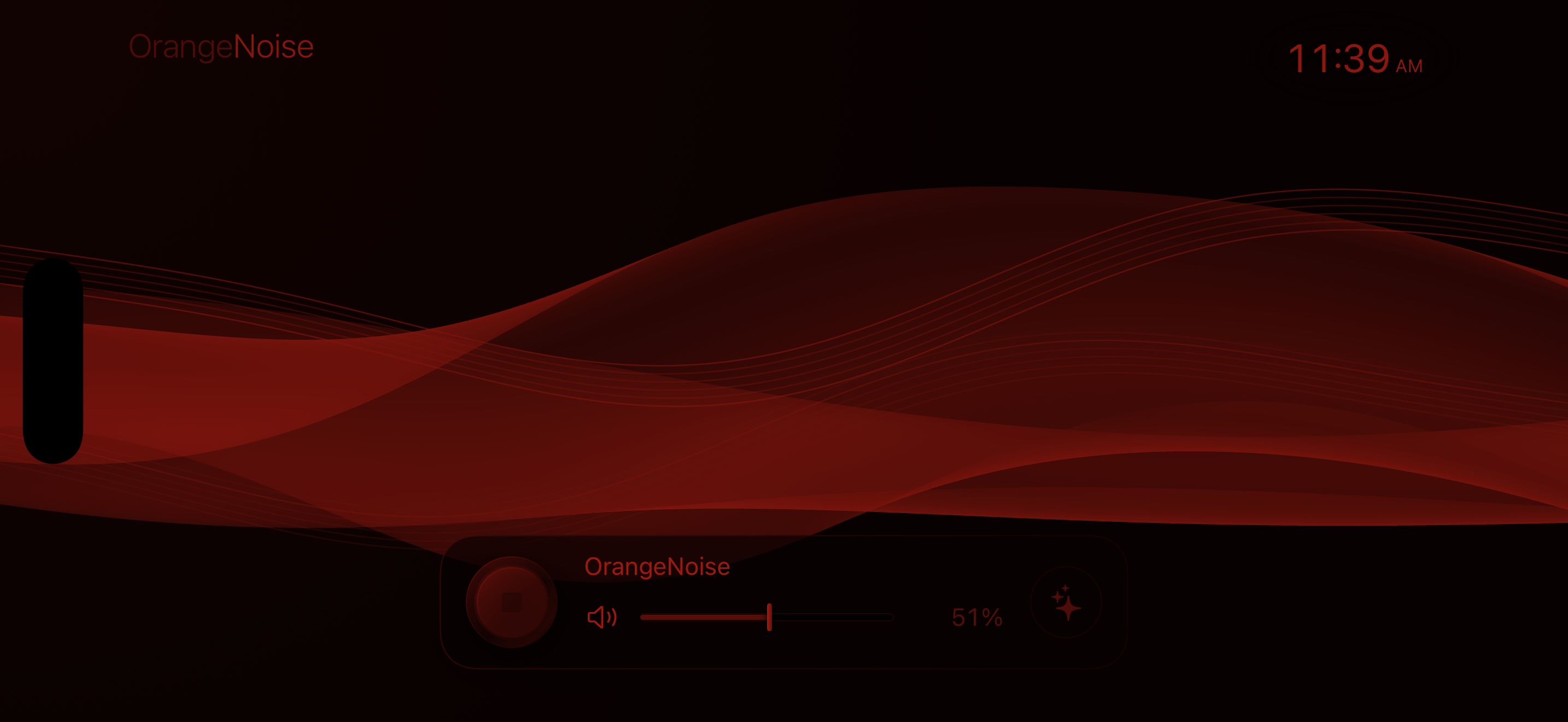
Choose how long you’d like the sound to stay. The free timer runs up to two hours and can fade gently over its last 30 seconds.
Turn your iPhone sideways, open Listen and turn on Night Display. Choose Night red, then leave it alone. The screen dims after the delay you set.
If you prefer a dark room, lock the phone. The sound keeps playing offline until your timer ends. Pro adds longer timers and saved nightly routines.
Set the timer at bedtime and let the sound fade on its own. Night Display gives you a dim clock if you leave the app open.
OrangeNoise for focus
At a shared desk, each pause in the typing makes the next burst of keys stand out. Try a low rush of Brown under the clatter while you finish a thought.
Six sounds and tone controls are free. No subscription.
Brown has a deep rumble. Pink brings in a little more of the high, airy hiss. Switch between them at your desk and listen for which one feels comfortable under the sounds around you.
If a sound feels too bright, turn Tone toward Warm. For a little texture, switch to the signature OrangeNoise sound and bring up Rain.
Lock your screen and keep writing. Your phone makes the sound as it plays, even offline. Set a timer if you want it to fade when it’s time for a break.
Try Pink or Brown during a few pages of reading. In Sounds, adjust Tone until the background sits comfortably under the room.
OrangeNoise on iPhone Duo
Start listening with your phone folded. When you sit down at your desk, unfold it. Your sound keeps playing, and the wider view puts the controls beside the visual.
Six sounds and the Duo layout are free. No subscription.
Try a soft rush of Pink before you open your book. The same six free sounds are there whether your phone is open or folded.
On the open display, the player sits on the right. Adjust the volume or open a sound editor, then return to Listen with your sound still playing.
Fold the phone to return to the cover layout, or lock it to put the display away. Playback continues either way.
Start listening on the cover display and unfold it when you want more room for the controls.