OrangeNoise 3.0 · Complete guide
Make it your own.
What’s included, what Pro adds, and how your sound, visuals and nightly routines fit together.
New in 3.0
Your visual, throughout.
Listen, Sounds and Signal now share a living backdrop on portrait iPhone. Floating glass keeps your controls readable, while the player stays within reach.
Swipe horizontally between the three main views, or use their navigation buttons. Dials and sliders still adjust their values; vertical swipes scroll longer controls. Your sound keeps playing as you move around.
The sound capsule opens your color choices. Matching dials make sound shaping and blending consistent, and scrolling controls soften as they pass beneath the player. Presets and Settings open as separate sheets with a handle: swipe down or choose Done to return.
The new layout is included free. Pro features, including Clouds, Blend, saved presets, routines and Signal, still require Pro.
Free + Pro
Feature by feature.
Plenty to begin. More to make your own. Pro includes everything in Free, with one optional purchase and no subscription.
3Silk visualsYour quiet, in motion.
12Total visualsClouds, light, water & more.
| Feature | FreeIncluded with the app | ProOne purchase. Yours to keep. |
|---|---|---|
| Sound | ||
| Six sounds | All sixOrangeNoise, Brown, Pink, White, Green and Blue. | All sixThe same six sounds. |
| Sound controls | Shape your soundVolume and Tone; Rain and Softness for OrangeNoise. | Add audio MotionAll free controls, plus Motion for every sound and blend. |
| Blending | 60-second previewAdjust five colors and compare your mix. | Keep your blendPlay your five-color mix and save it. |
| Signal | Not included | See your soundLive spectrum, one-third-octave analyzer and output meters. |
| Your view | ||
| Visual styles | 3 Silk stylesIncluding their movement controls. | 12 stylesSilk, Light & flow, Atmospheres and Clouds. |
| Color | Follows soundThe view takes on your sound’s color. | Your own paletteFollow sound, 15 single colors or 4 blends: Rainbow, Twilight, Ocean and Sunset. |
| Clouds & Aurora | Not included | Clarity + glowSoft–Clear cloud clarity and Aurora glow over any visual. |
| Clock & device layouts | IncludedPortrait glass controls, swipe navigation, 3 clock sizes and adaptive device layouts. | IncludedThe same glass controls, navigation, clock and device layouts. |
| Night Display | IncludedNight red or Normal color, adjustable dimming and gentle tap or optional movement brightening. | IncludedThe same display controls. Audio duration is separate. |
| Your listening | ||
| Session length | Up to 2 hoursChoose your audio timer. | Up to 10 hoursOr Indefinite, until you stop. |
| Fades | Up to 30 seconds | Up to 5 minutes |
| Saved sounds | Not included | 6 named presetsDrag to reorder; your last setup is remembered. |
| Nightly routines | Not included | 2 saved routinesTime windows, fades and scheduled starts. Choose an ending or Until I stop. |
| Sharing | Not included | Share + importSaved sounds and complete routines across your devices. |
| Background playback | IncludedListen in the background or with the screen locked. | IncludedThe same playback, with longer sessions available. |
| Quick access | Playback toggleControl Center, supported iPhone Lock Screens and Shortcuts. | Routine action tooAll free playback access, plus Start OrangeNoise Routine in Shortcuts. |
Apple shows the current Pro price in the app. Use the Apple Account that owns Pro on your devices, and choose Restore purchases if needed. Purchase and restore help.
Sound
Find your own balance.
All sound is generated live on your device, without looping recordings. Listening works offline.
Six sounds, with room to adjust
Choose signature OrangeNoise or Brown, Pink, White, Green or Blue. Volume and Tone are included for each. OrangeNoise also has Rain and Softness.
With Pro, Blend mixes five noise colors. Try the free 60-second preview to compare Original and My blend before deciding. Audio Motion changes a sound over time with adjustable speed and depth; it is separate from visual movement.
Save, arrange and share your sounds
Pro gives you six named sound presets. The Presets icon gains a small + when your current sound can be saved. Opening it still brings you to your library; tap a saved sound to play, or choose Save current sound to select a slot.
Empty slots are highlighted while saving. If all six are used, choose one to replace and confirm before overwriting it. Drag presets into your preferred order. Changing Volume keeps a matching preset name and does not switch your saved sound.
Share sound and Import sound are in each preset slot’s ••• menu. Complete routines can be shared too, with their sounds included. Importing does not start playback.
See the sound with Signal
Pro’s Signal view shows a live spectrum, one-third-octave analyzer and output meters. It measures the audio generated inside OrangeNoise, without using your microphone or measuring the room.
Visuals
A view at your pace.
Your sound and your view can feel right together. Appearance choices stay on your device, separate from saved sound presets.
Twelve styles across four collections
- Silk · Free: Suspended silk, Open cocoon and Folded light.
- Light & flow · Pro: Aurora veil and Tidal glass.
- Atmospheres · Pro: Moonlit water and Opal bloom.
- Clouds · Pro: Cloud chamber, Cloud tide, Silver lining, Nebula bloom and Wind clouds.
Open Settings → Listen visuals, then open a category to choose its type and controls. The visual chooser in Listen lets you switch types without leaving the view.
Movement, cloud clarity and Aurora glow
Choose Subtle, Balanced or Expressive sound response, then set Travel speed from Almost still to Fast. Silk, Atmospheres and Clouds also have Morph speed. Each category remembers its choices. Existing saved preferences are preserved when you update.
Pro Clouds adds Soft–Clear clarity. Wind clouds drift and reshape as they move; Expressive increases deformation. Optional Pro Aurora glow adds light over any visual, including free Silk styles.
Visuals respond to audio generated inside the app, settle when playback stops and respect Reduce Motion. Clouds and Aurora help.
Follow your sound—or choose your own palette
The free appearance follows the noise color. Pro App color lets you keep one of 15 single colors, or choose Rainbow, Twilight, Ocean or Sunset, regardless of the sound.
The palette follows your visuals, playback controls and clock. The sound capsule and Blend dials retain their sound colors so they remain identifiable. App color changes appearance, not audio.
Your device
One familiar app.
The adaptive layouts are included free. The genuine screens below show Clouds and App color, which require Pro.
iPhone: in your hand or turned sideways
Listen, Sounds and Signal share a full visual backdrop in portrait, with glass controls and a persistent player. Swipe between those screens or use the navigation buttons. Sounds adds a compact color chooser and matching dials; Pro Signal shows the sound while the visual continues behind it.
Turn Listen sideways for a full visual, top-right clock, Play/Stop, Volume and visual chooser. Sounds, Signal and editors remain portrait. Presets and Settings have a grab handle and slide down when dismissed.
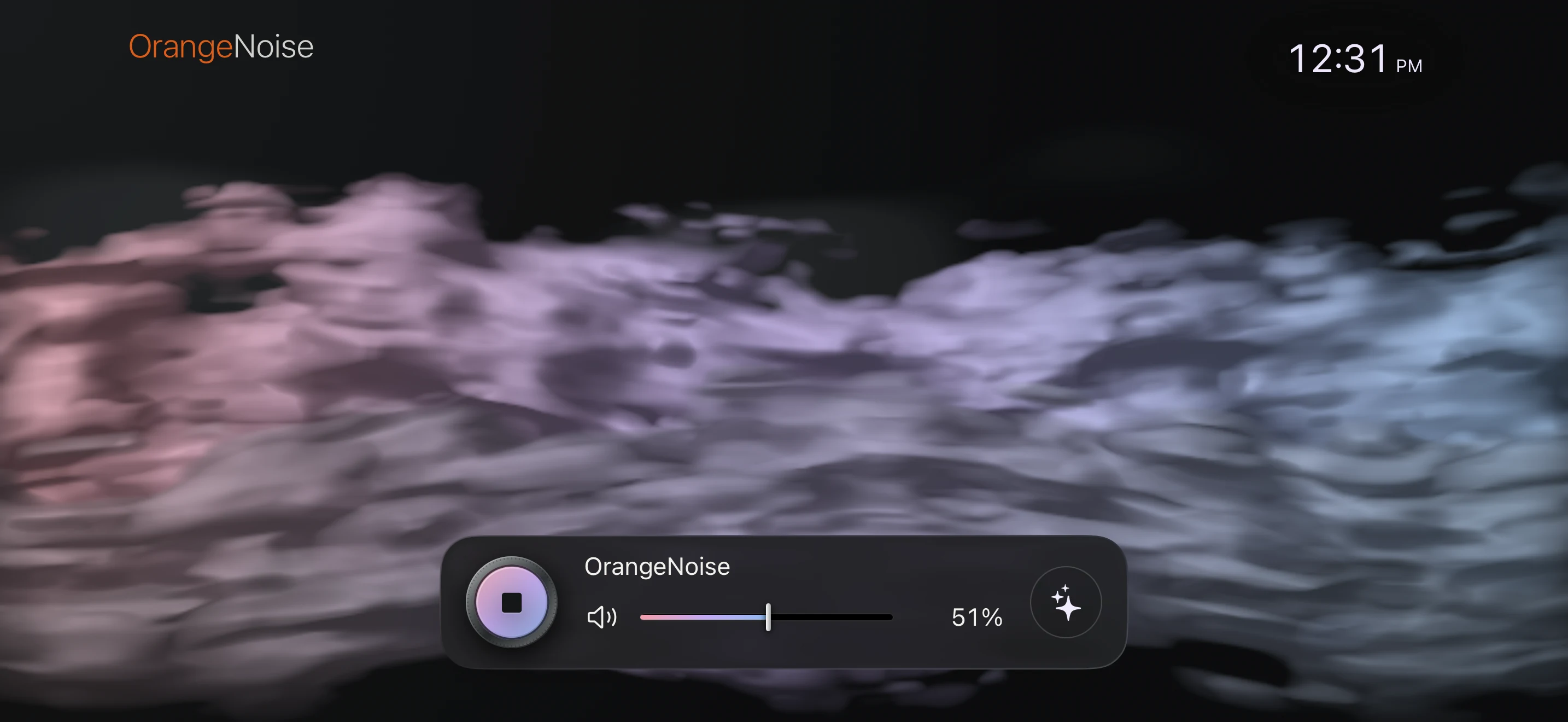
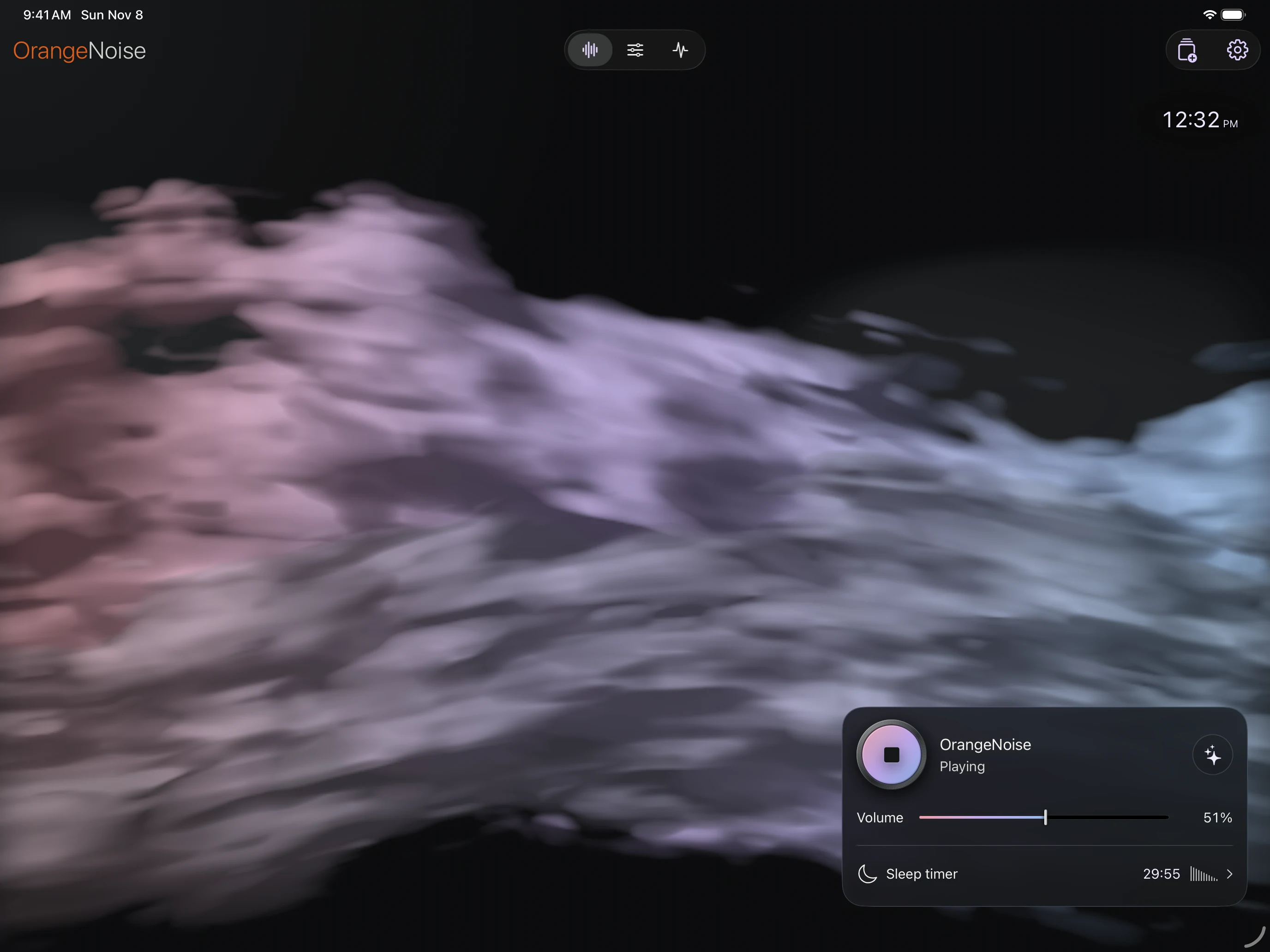
iPad: room for the view and your controls
The app works in portrait or landscape. A continuous visual sits behind a floating workspace that moves to the side or near the bottom as your window changes. Pro Blend exposes its five color controls in Sounds; Signal uses the clear space beside or above the workspace. Native glass navigation is available on iPadOS 26 or later.
iPhone Duo: closed, open or folded
A continuous visual fills the display. Controls move from the bottom when closed to the right when open, or the lower usable surface in tabletop. Editors remain in the floating workspace; Signal uses the space beside it. Night Display works in every Duo Listen posture.
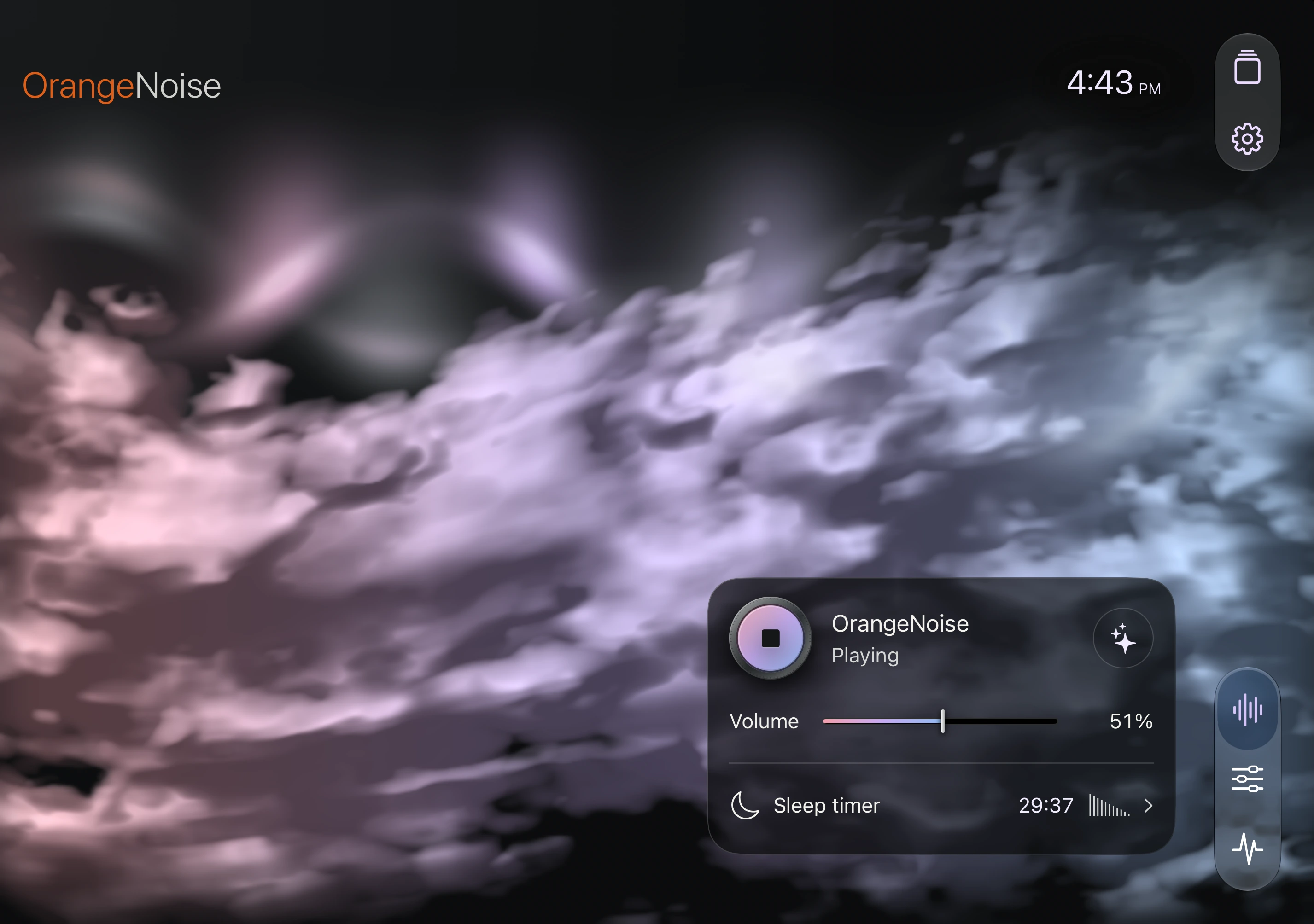
Use the same app and Apple Account on your devices. Pro sounds and routines can be transferred as OrangeNoise files; this is not automatic syncing.
The quiet hours
Settle into the night.
Night Display controls the view. Your sleep timer or routine controls the sound. Their durations are separate.
Night Display and the clock
Night Display is included free. Choose Use Auto-Lock, 15 or 30 minutes, one or two hours, or All night. It needs OrangeNoise open in landscape Listen—or any Duo Listen posture—on an awake, unlocked device.
Choose Normal color or Night red, an inactivity delay and separate brightened and dimmed levels. After inactivity, it dims in any room lighting. The first tap gently brightens without operating playback controls; Night red stays red. Optional movement brightening responds to physical device movement. Dimmed visuals use a reduced frame rate.
The app does not sense room light, change system brightness, silence other apps or wake a locked screen. Use your device’s Focus options for quiet notifications.
The top-right clock has Small, Medium and Large sizes and follows your device’s local time and 12/24-hour preference. It appears in landscape Listen on iPhone, and in Listen on iPad and Duo.
Arrange your whole night with routines
Pro includes two saved routines. Add time windows and place your saved sounds into them. Edit the sound, time and fades inside each window, including the starting fade. Your original sound, later changes and ending share one agenda. Saving changes does not start audio.
Start now or schedule a time. End after the last window, at a chosen time, or keep the final sound going until you stop. During a crossfade, the app shows the transition and gently changes the sound color; a chosen Pro App color keeps your palette.
Scheduled starts and Apple StandBy
For an in-app scheduled start, keep OrangeNoise in the foreground and unlocked while it waits. Schedule it again each night. Leaving the app or locking the device before the start cancels the waiting run. Play stays idle until sound begins; changing volume does not start it. Tapping Play early starts the current sound and cancels the schedule.
The starting fade reaches the volume selected when the routine begins. Once audio starts, the app releases its keep-awake hold so normal Auto-Lock can take over. Audio can continue while locked. Apple StandBy may then appear when its own requirements are met; OrangeNoise cannot force it open.
To start when already locked, create a Time of Day automation in Shortcuts with the Pro Start OrangeNoise Routine action. You create and enable that automation yourself.
Everyday access
Your sound, within reach.
The free Start or Stop OrangeNoise action toggles your current sound. Configure the sound in the app first.
On iOS or iPadOS 18 or later, add it to Control Center; supported iPhones also offer it as a Lock Screen control. In Shortcuts, add the action to your own shortcut. Pro includes a separate Start OrangeNoise Routine action for a saved routine.
Set up Control Center and ShortcutsYour choice
Help improve it, if you want to.
Starting with version 3.0, optional analytics can help us improve OrangeNoise. Sharing is off until you choose it, and no Pro purchase is required.
Open Settings → Privacy & analytics → Share analytics to turn sharing on or off. Declining changes none of your features. The app does not record audio, and activity from before your choice is not uploaded.
Turning sharing off stops new collection, clears unsent events and requests deletion of shared data. Keep the app installed and reopen it online so that request can finish automatically.
Still need a hand?
Our support guide has step-by-step answers, plus a way to get in touch.
Get supportBack to OrangeNoise